> ## Documentation Index
> Fetch the complete documentation index at: https://integrations.docs.commenda.io/llms.txt
> Use this file to discover all available pages before exploring further.
# Sage Intacct
> Learn more about how to set up our Sage Intacct integration.
### Part 1: Add Sender ID to your Sage Intacct account
1. Go to the Sage Intacct [website](https://www.intacct.com/ia/acct/login.phtml) and log in.
2. Select the Company in the dropdown next to Home icon.
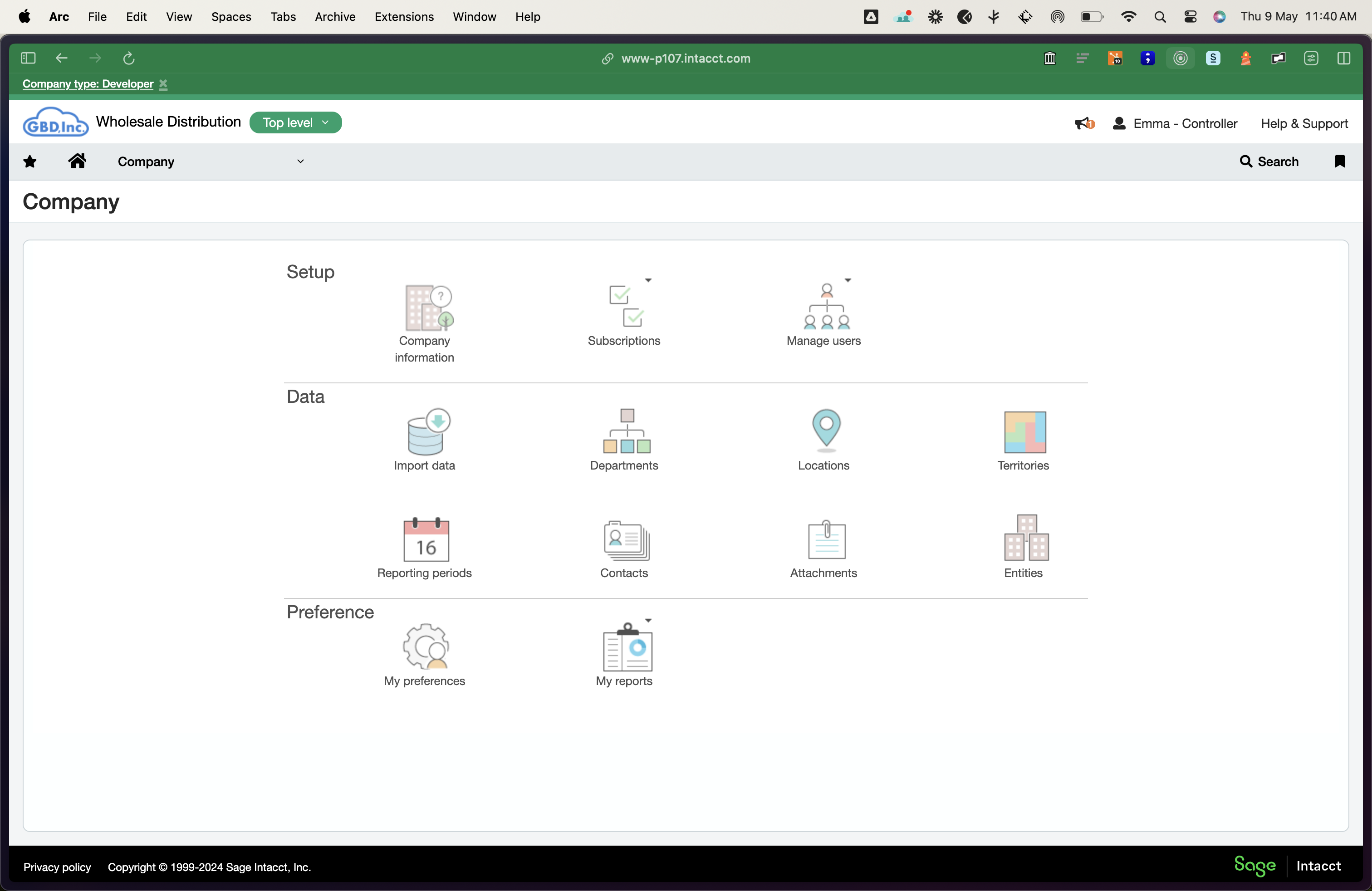
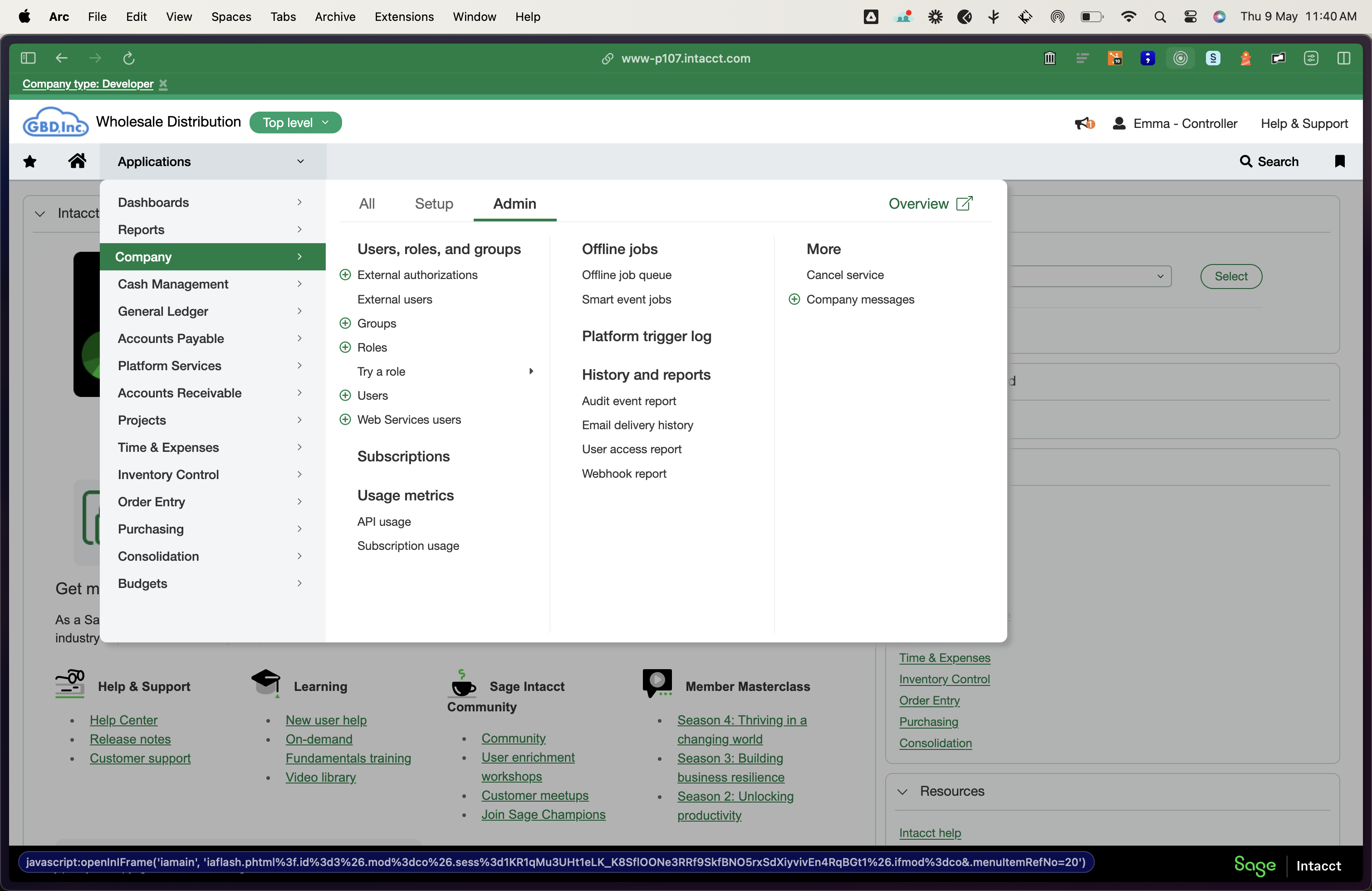 3. Click 'Company information' in the setup section.
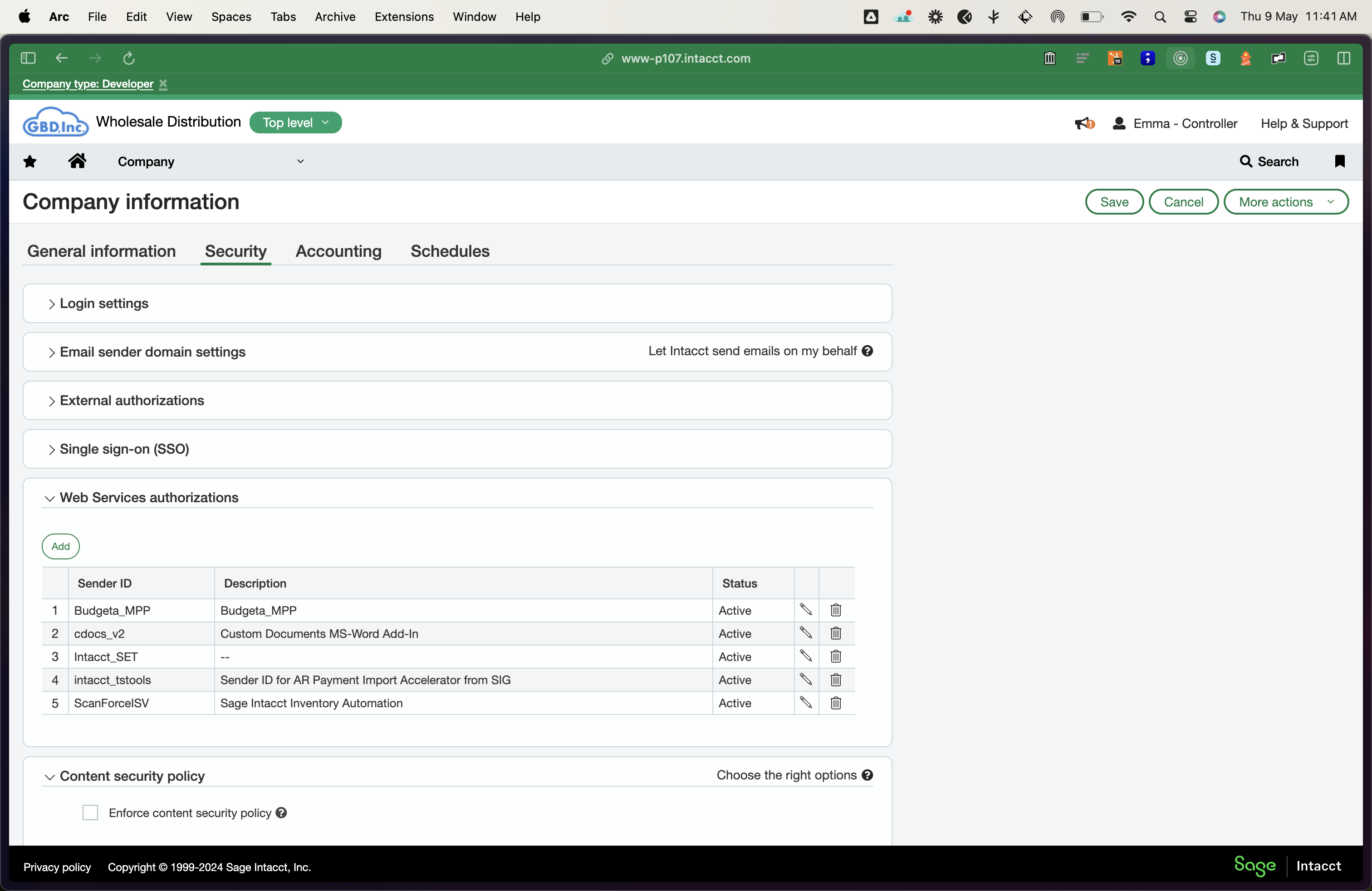
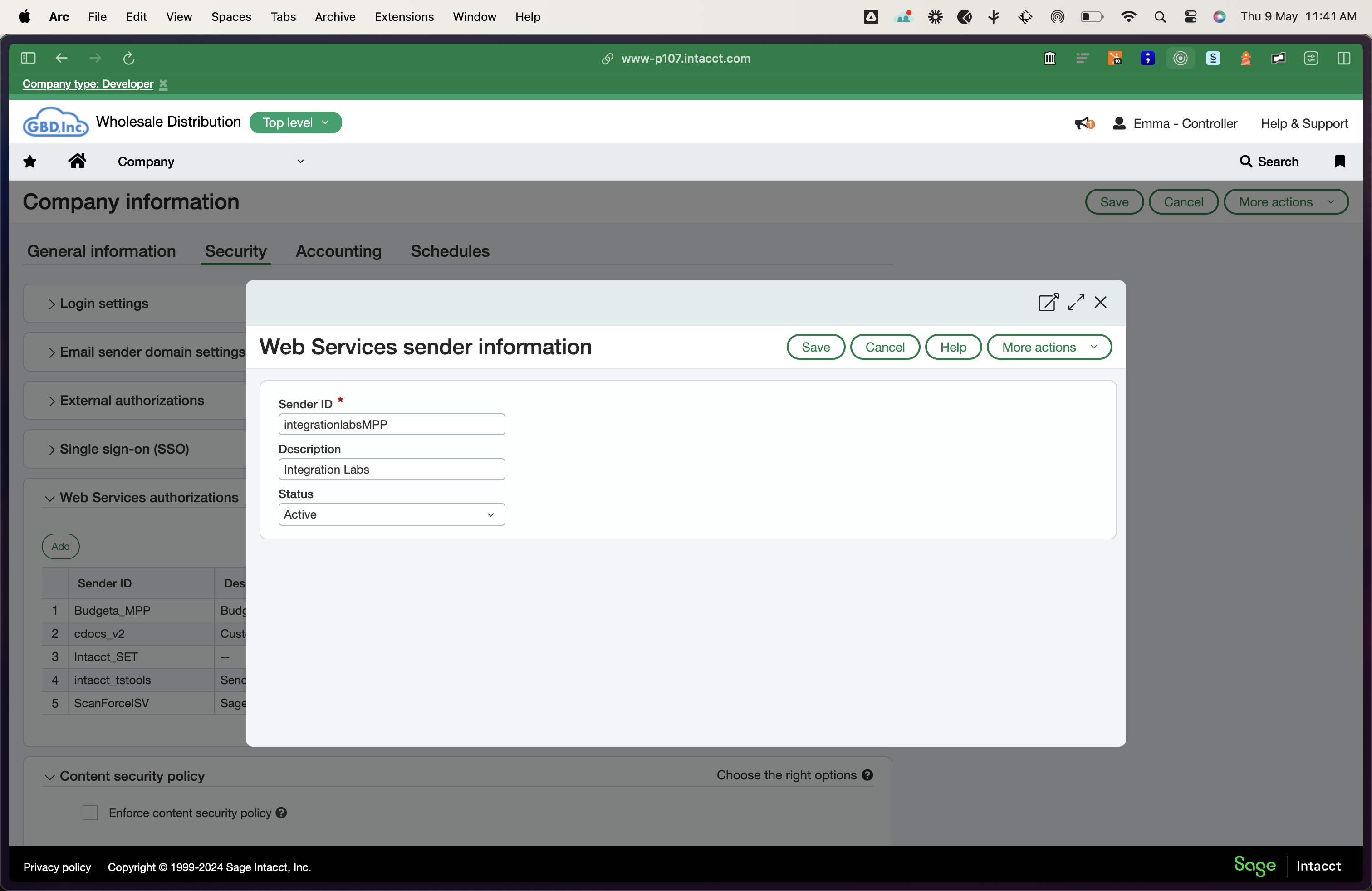
 4. Go to the 'Security' tab and click the 'Edit' button at the top right. Then, navigate to the Web services section and click the 'Add' button
 5. Enter the Sender ID and click 'Save'.
If you're using RootFi's Identifiers, you can add our Sender ID '**IntegrationLabsMPP**' to your Sage Intacct account. Otherwise, you can use your customer's Sender ID.
5. Enter the Sender ID and click 'Save'.
If you're using RootFi's Identifiers, you can add our Sender ID '**IntegrationLabsMPP**' to your Sage Intacct account. Otherwise, you can use your customer's Sender ID.
 ### Part 2: Setting up the integration Using RootFi Connect
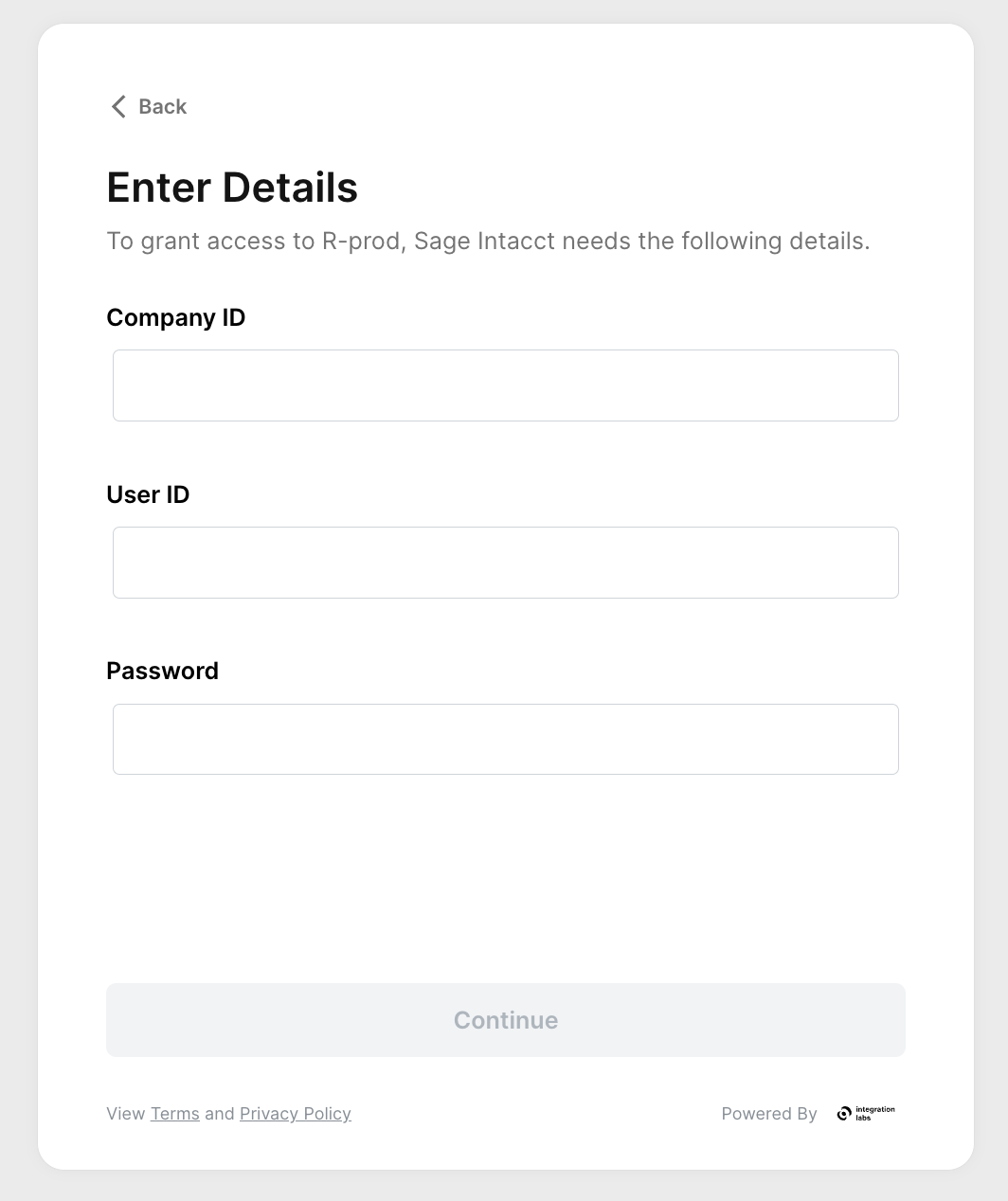
When you are trying to connect your Sage Intacct account to RootFi, we need the following information:
1. **Company ID**: The company ID of your Sage Intacct account.
2. **User ID**: The user ID of your Sage Intacct account.
3. **Password**: The password of your Sage Intacct account.
### Part 2: Setting up the integration Using RootFi Connect
When you are trying to connect your Sage Intacct account to RootFi, we need the following information:
1. **Company ID**: The company ID of your Sage Intacct account.
2. **User ID**: The user ID of your Sage Intacct account.
3. **Password**: The password of your Sage Intacct account.