> ## Documentation Index
> Fetch the complete documentation index at: https://integrations.docs.commenda.io/llms.txt
> Use this file to discover all available pages before exploring further.
# Pipedrive
> Learn more about how to set up our Pipedrive integration.
In order to get started using your own credentials for our Pipedrive integration, you will need to first register your Pipedrive application. After that, you will need to enter your Client ID and Client Secret on the RootFi dashboard.
These steps are elaborated upon in detail below.
***
### Part 1: Register your Pipedrive application
1. Go to [https://pipedrive.com/](https://pipedrive.com/) and sign in using your credentials,
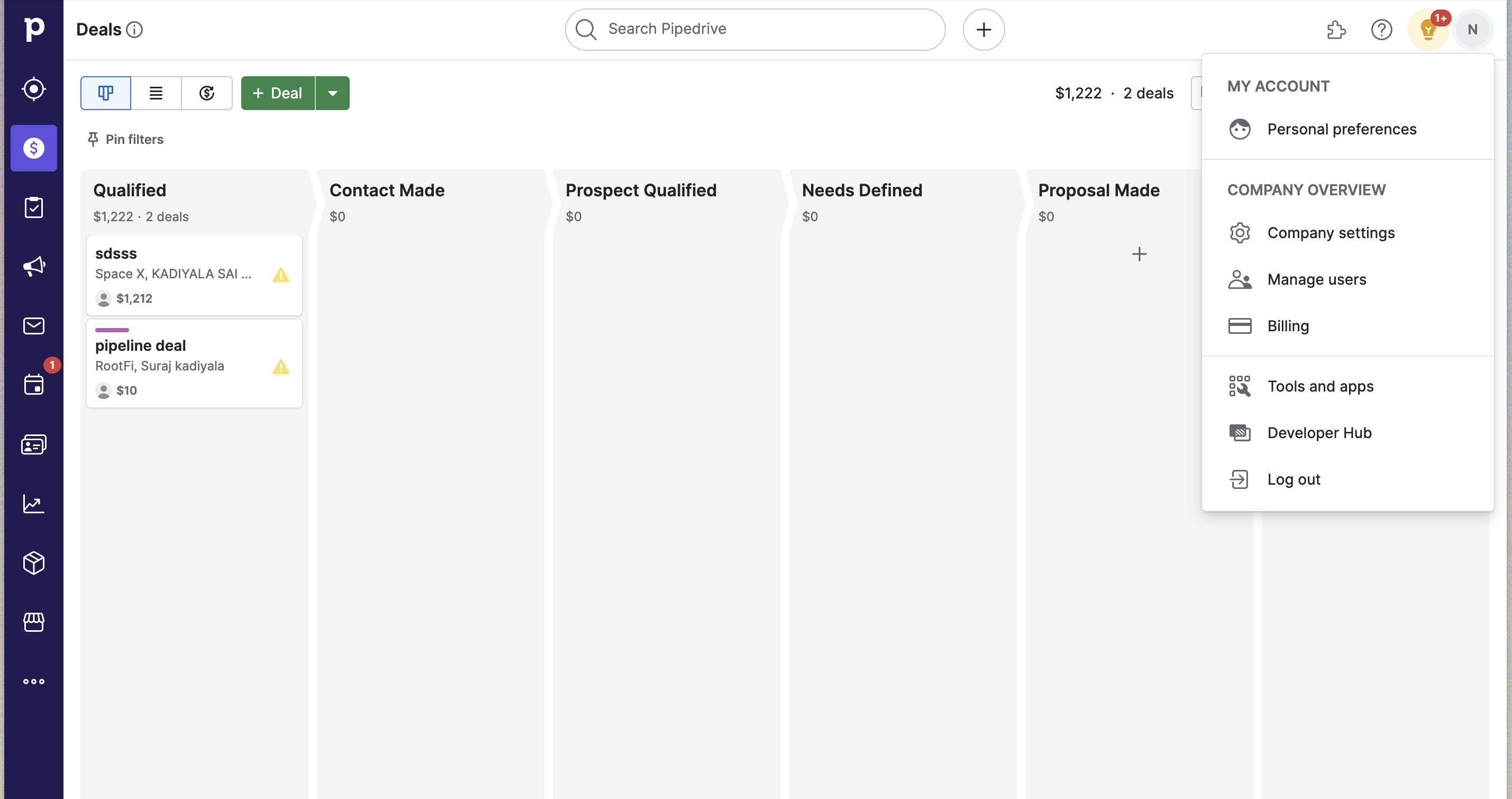
2. On the top right corner, click on your profile icon and select Developer Hub from the dropdown menu.
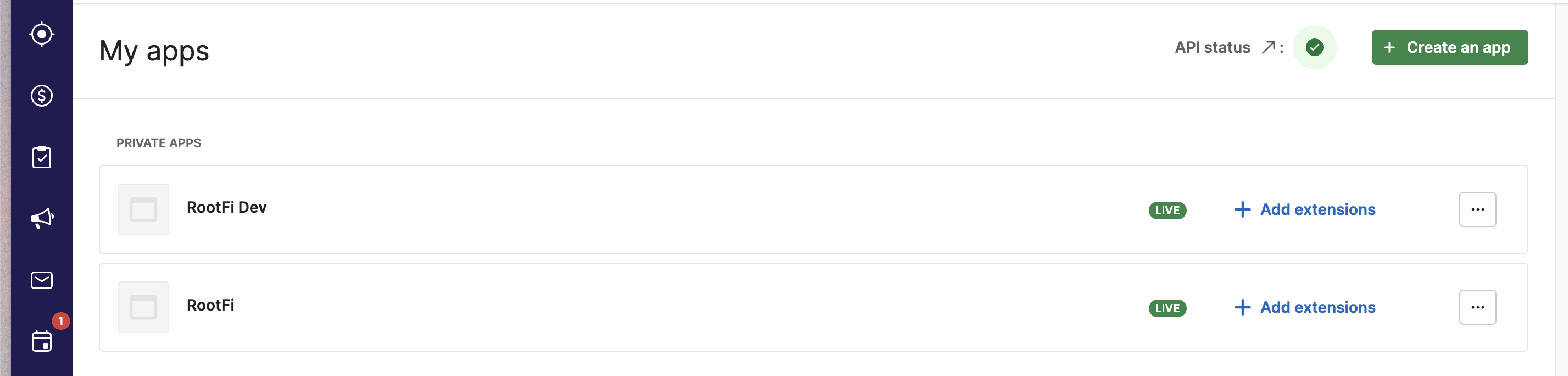
 3. On the My Apps page, click on the ‘Create New App’ button.
 4. Fill up the form with the following details:
* For the ‘App Name’ field, enter your company's name.
* In the Callback Url’ field, enter [ROOTFI CALLBACK URL](/api-reference/v3/overview/environments#callback-urls)
4. Fill up the form with the following details:
* For the ‘App Name’ field, enter your company's name.
* In the Callback Url’ field, enter [ROOTFI CALLBACK URL](/api-reference/v3/overview/environments#callback-urls)
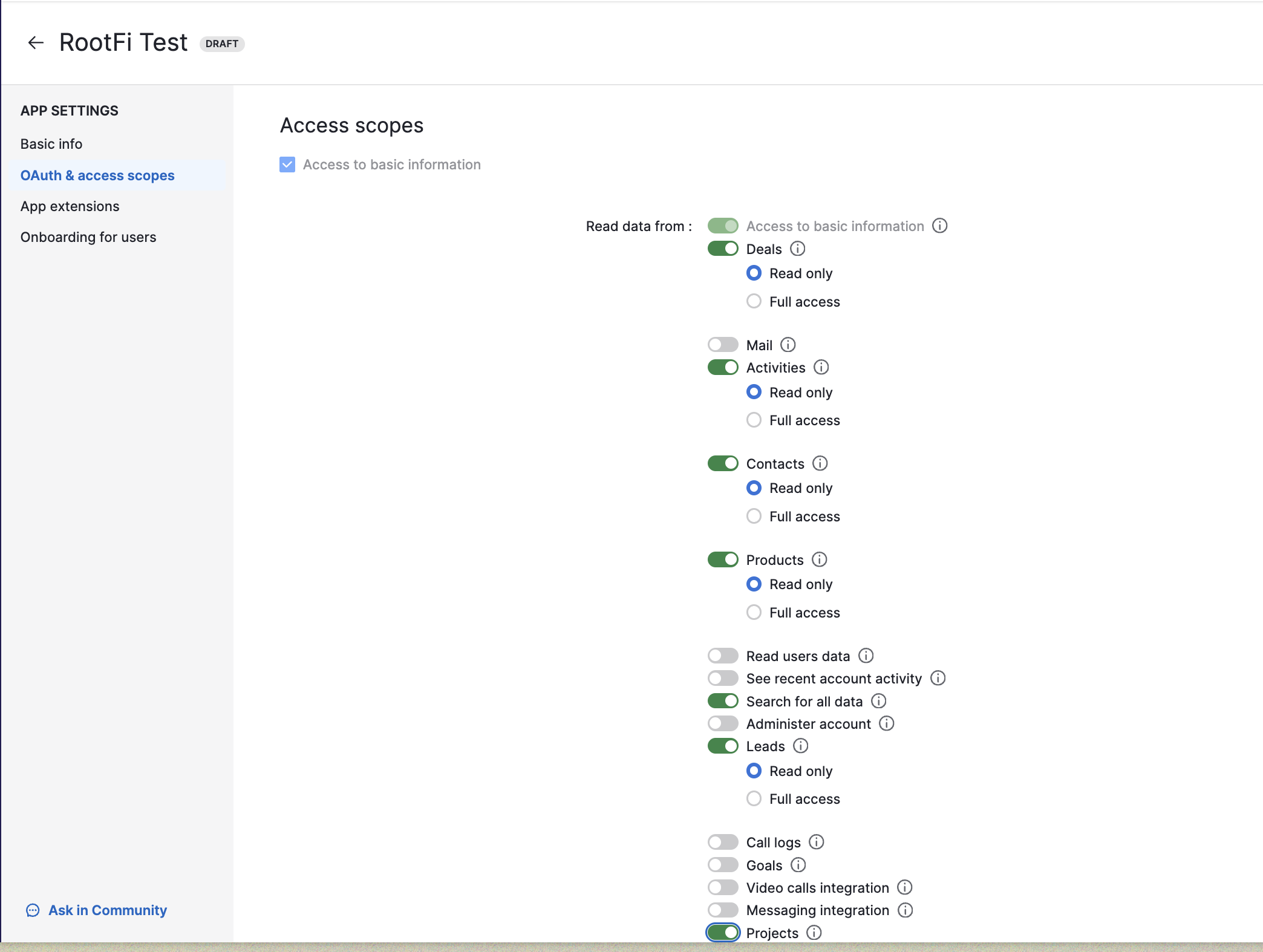
 5. Go to Oauth and access scopes tab and give all the necessary permissions.
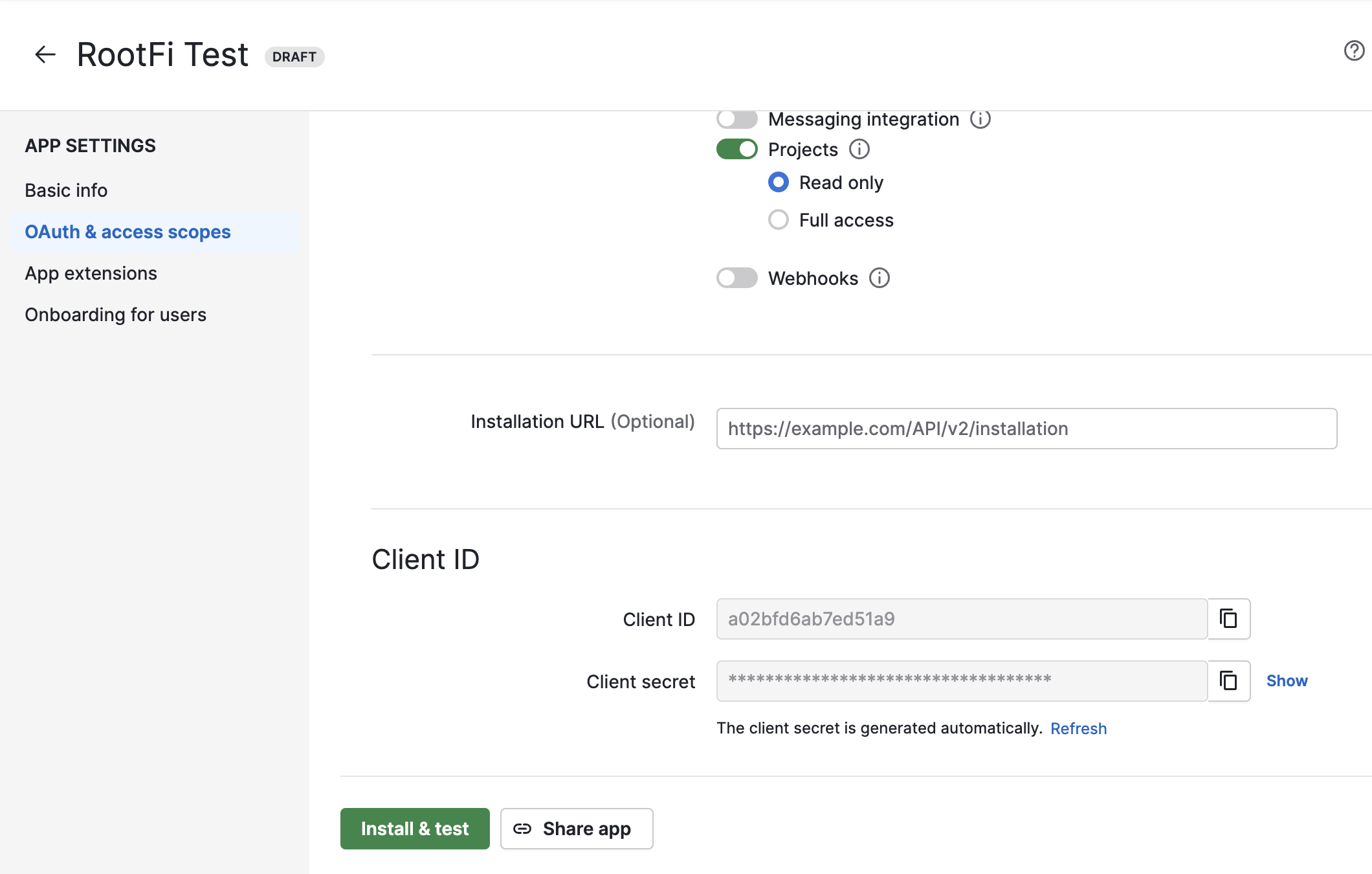
 6. Click on the ‘Save’ button and copy the ‘Client ID’ and ‘Client Secret’.
 ### Part 2: Enter Your Client ID and Client Secret on the RootFi Dashboard
1. Login to the RootFi dashboard
2. Select the 'Integrations' tab on the sidebar - here you will see a list of platforms you can integrate with
3. Click the 'Set Up' button which is present on the Pipedrive card.
4. When the form opens up simply enter the 'Client ID' and 'Client Secret' which you generated on Pipedrive and click 'Save'
### Part 2: Enter Your Client ID and Client Secret on the RootFi Dashboard
1. Login to the RootFi dashboard
2. Select the 'Integrations' tab on the sidebar - here you will see a list of platforms you can integrate with
3. Click the 'Set Up' button which is present on the Pipedrive card.
4. When the form opens up simply enter the 'Client ID' and 'Client Secret' which you generated on Pipedrive and click 'Save'