> ## Documentation Index
> Fetch the complete documentation index at: https://integrations.docs.commenda.io/llms.txt
> Use this file to discover all available pages before exploring further.
# Shopify
> Learn how to set up our Shopify integration.
To get started with our Shopify integration, your customer must first create an API Key on their Shopify dashboard. Then, they must enter their Shopify credentials on RootFi when prompted during the onboarding flow via SDK or Invite Link.
These steps are elaborated on below.
***
### Part 1: Create a new app on Shopify
1. Login to your Shopify Dashboard.
2. Click ‘Settings‘(Bottom left of the navigation menu)
3. Click ‘Apps and Channels’. (Bottom left of the navigation menu)
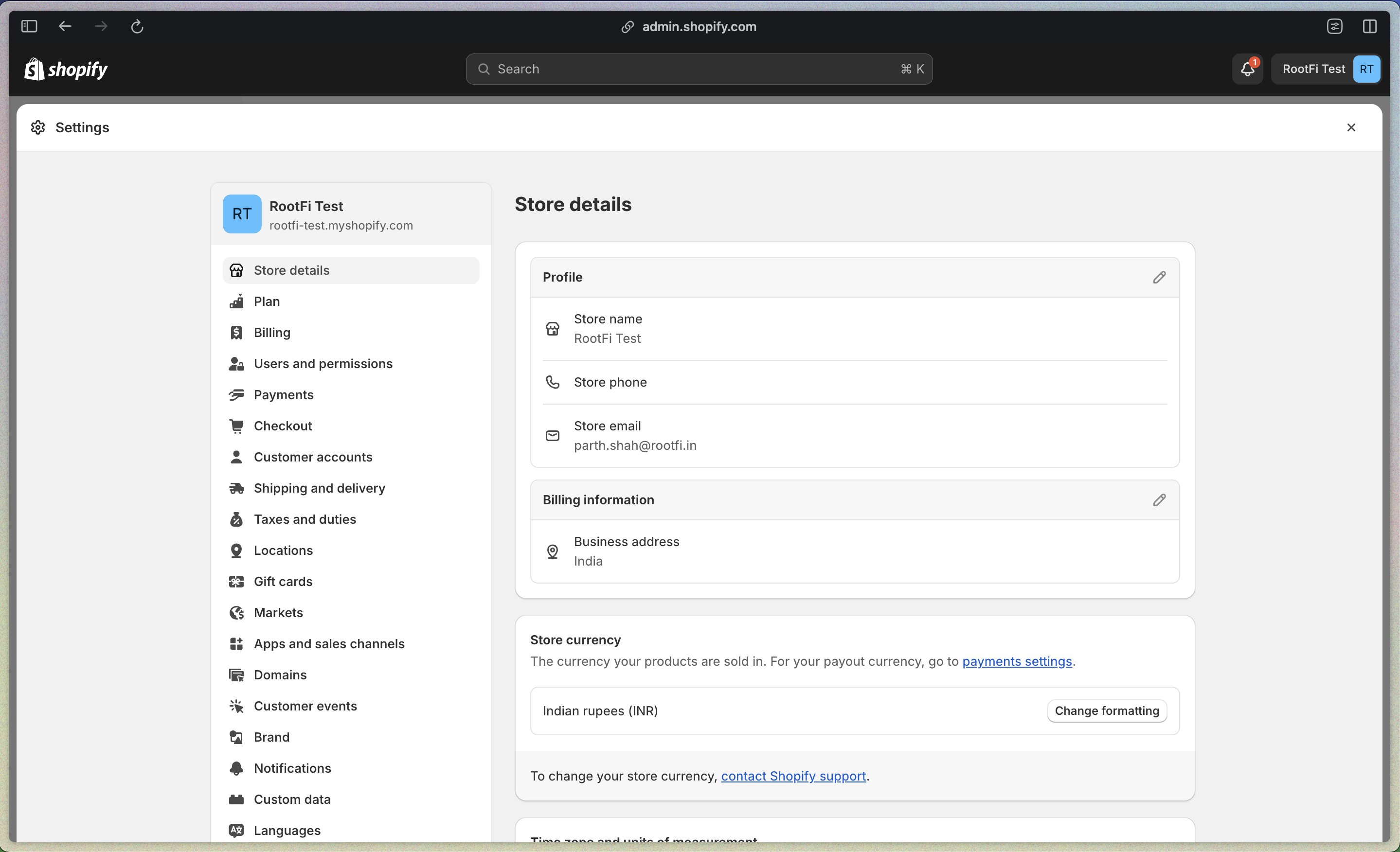 4. Click ‘Develop apps’ (on the top right)
 5. Click ‘Create an app’.
 6. Name the app. We suggest naming it “RootFi integration” or "*Your Company Name* integration".
7. Click ‘Create App.’
6. Name the app. We suggest naming it “RootFi integration” or "*Your Company Name* integration".
7. Click ‘Create App.’
 ### Part 2: Generate Shopify API Key
1. Click the ‘Configurations’ tab for the new app created and click ‘Configure’ on the ‘Admin API integration’ card.
### Part 2: Generate Shopify API Key
1. Click the ‘Configurations’ tab for the new app created and click ‘Configure’ on the ‘Admin API integration’ card.
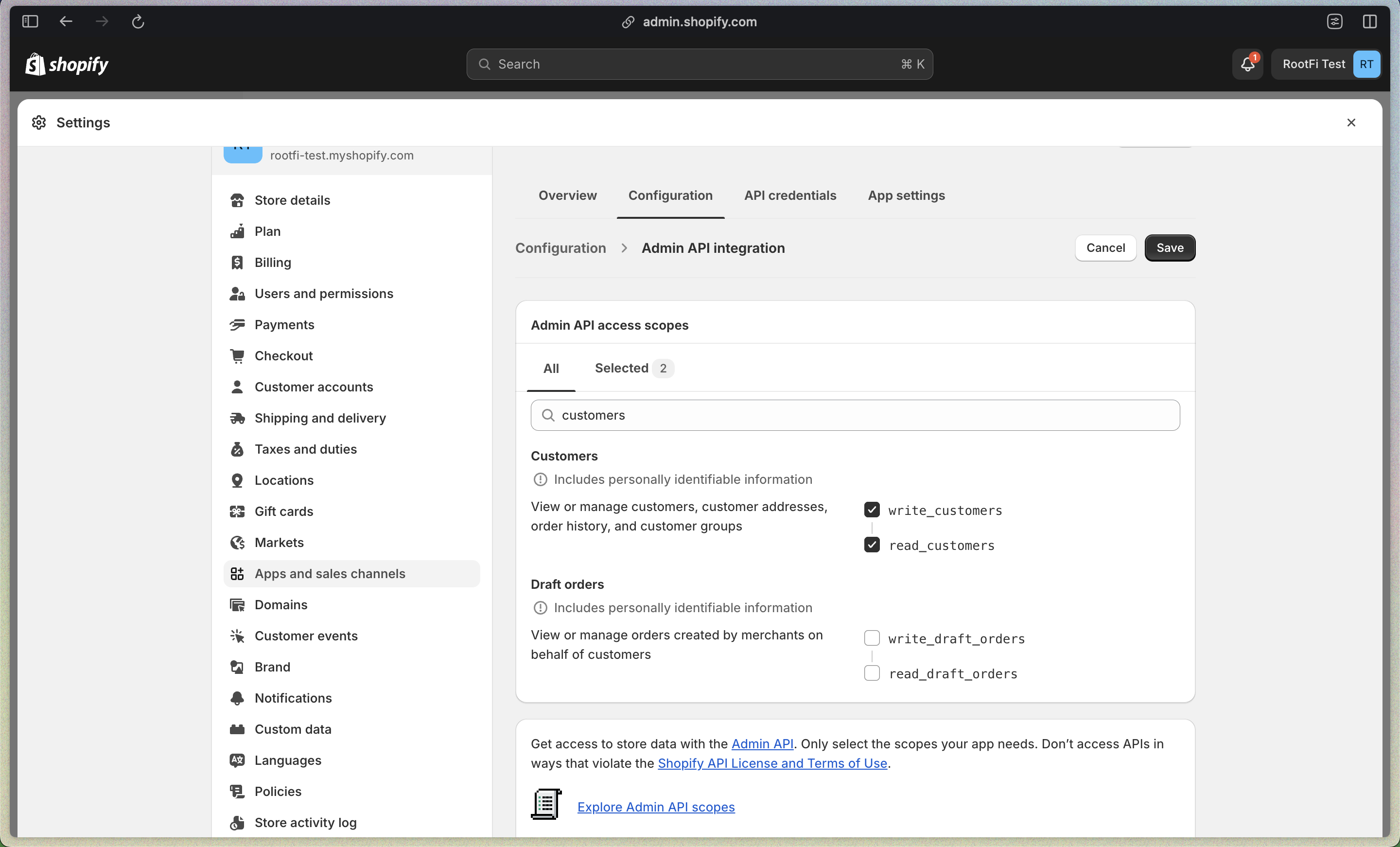
 2. Now, you will have to enable access to needed data models that you want RootFi to sync. We recommend at least giving access to Products, Orders, and Customers.
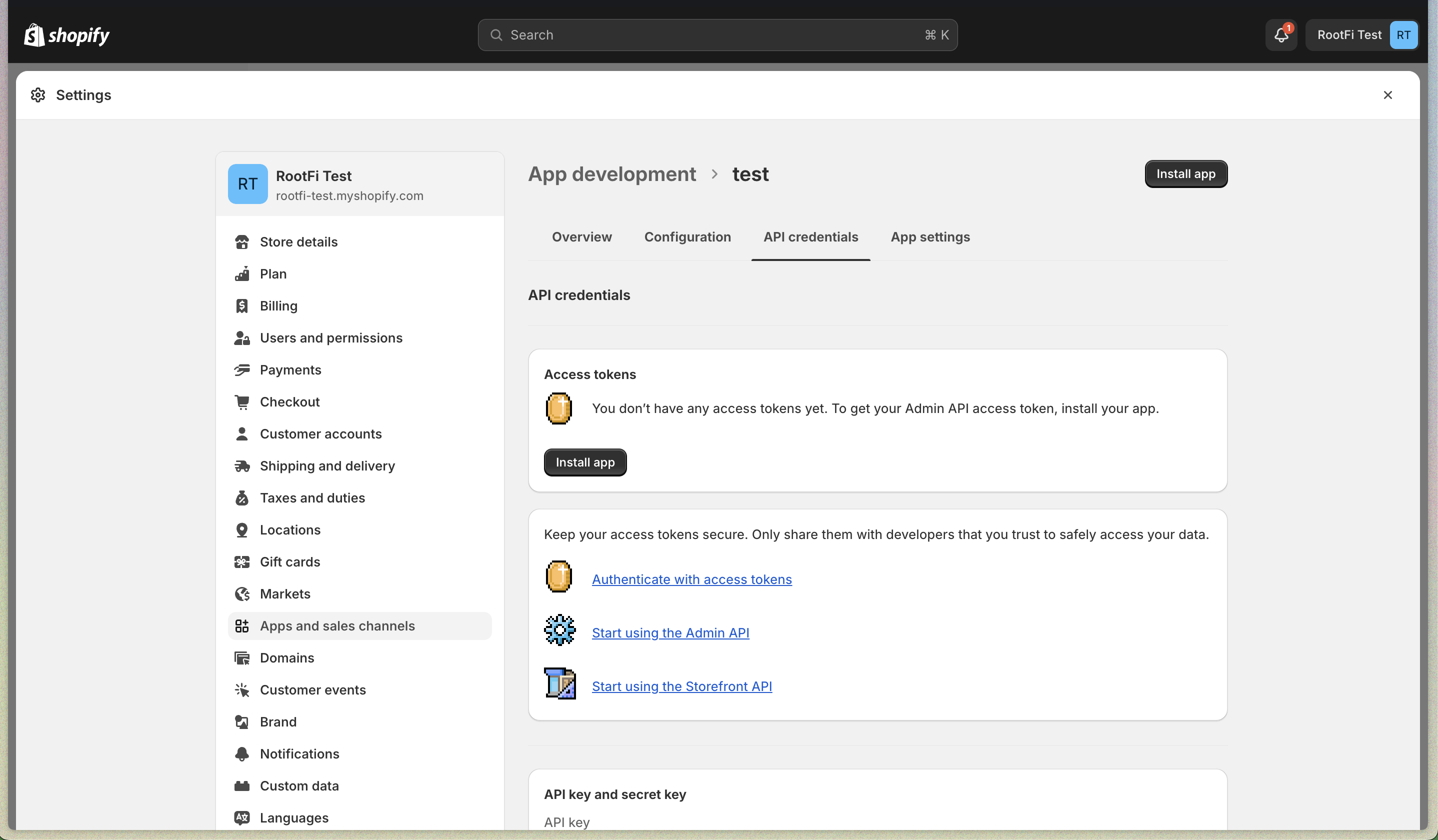
 3. Go to the ‘API Credentials’ tab and click on ‘Install app’ in the ‘Access tokens’ card. This will generate the API Key and Secret Key.
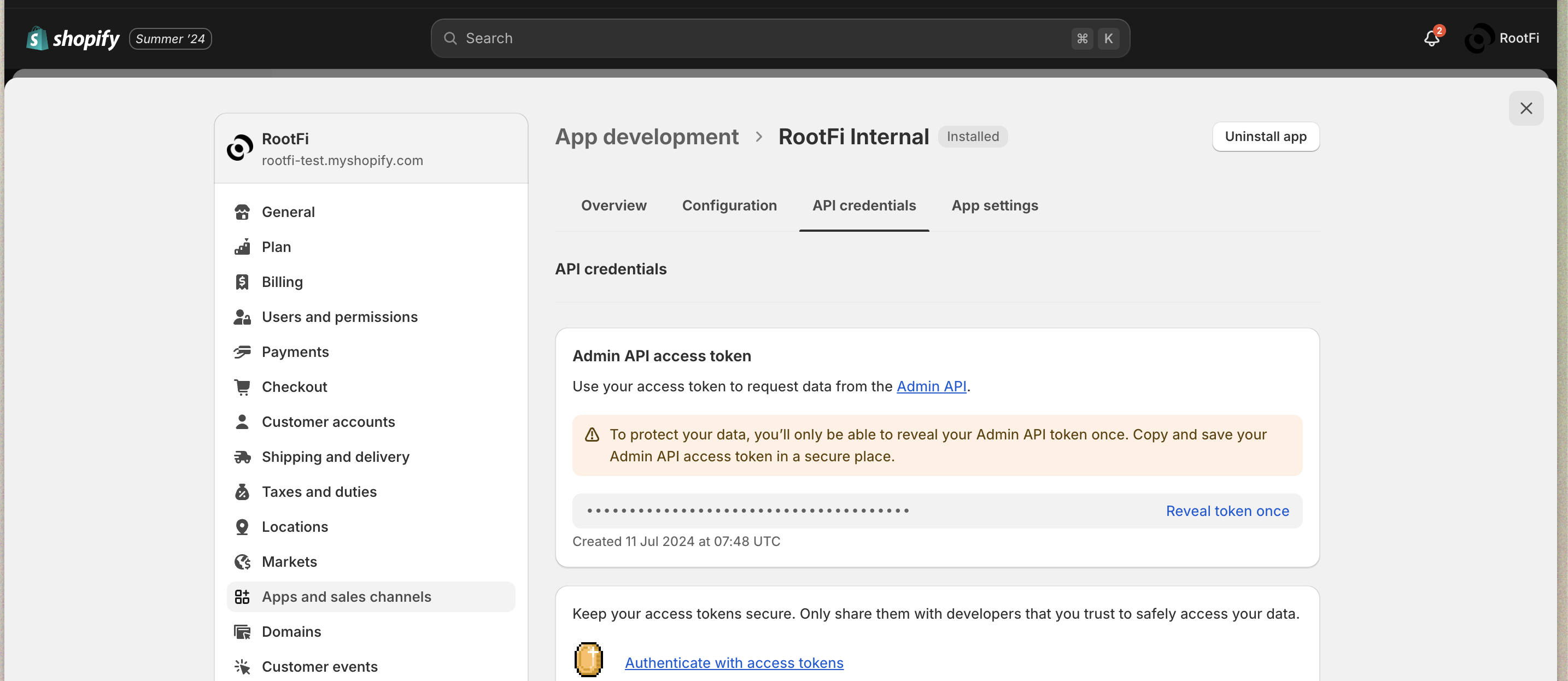
 4. Click ‘Reveal token’ and copy the generated API Key.