> ## Documentation Index
> Fetch the complete documentation index at: https://integrations.docs.commenda.io/llms.txt
> Use this file to discover all available pages before exploring further.
# Mollie
> Learn how to set up our Mollie integration.
To start using our Mollie integration, you need first get the API Key from Mollie.
These steps are outlined in greater detail below.
***
### Step 1 - Get Your API Key
1. Log in to your Mollie dashboard.
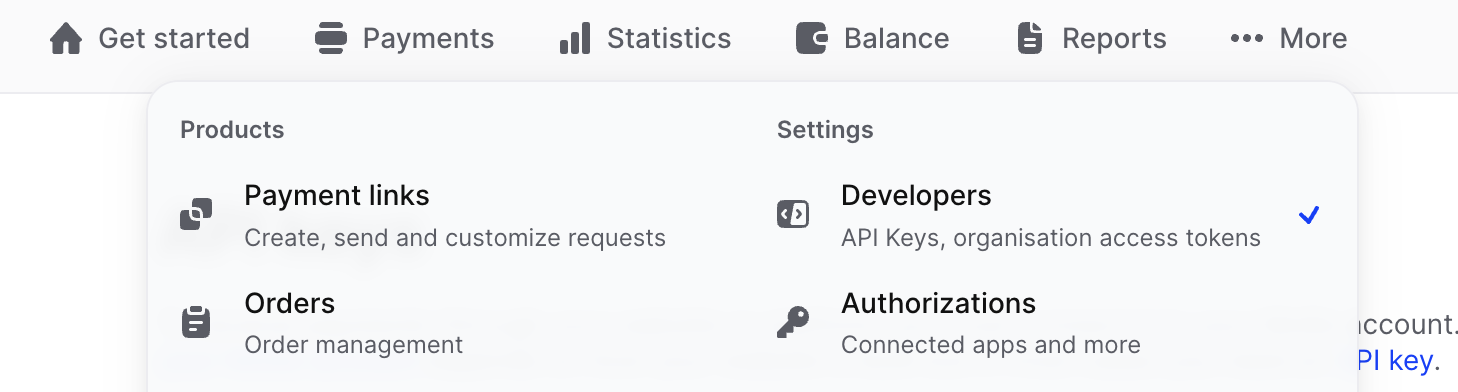
2. Go to More > Developers.
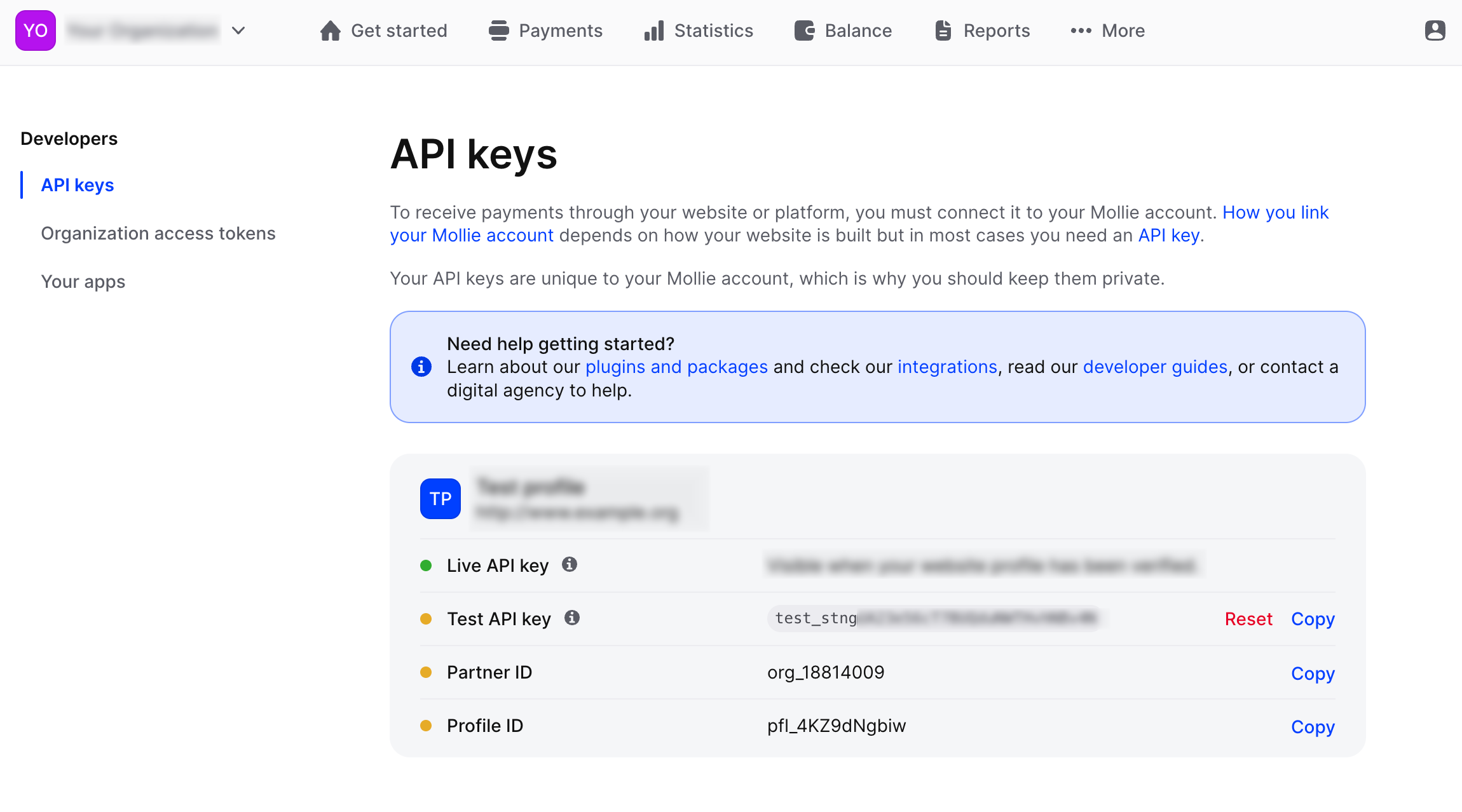
 3. You will see your API Keys here.
Copy the Live API key if you are ready to go live, or the Test API key if you are still in the testing phase.
3. You will see your API Keys here.
Copy the Live API key if you are ready to go live, or the Test API key if you are still in the testing phase.
 ### Part 2: Setting up the integration using Connect by RootFi
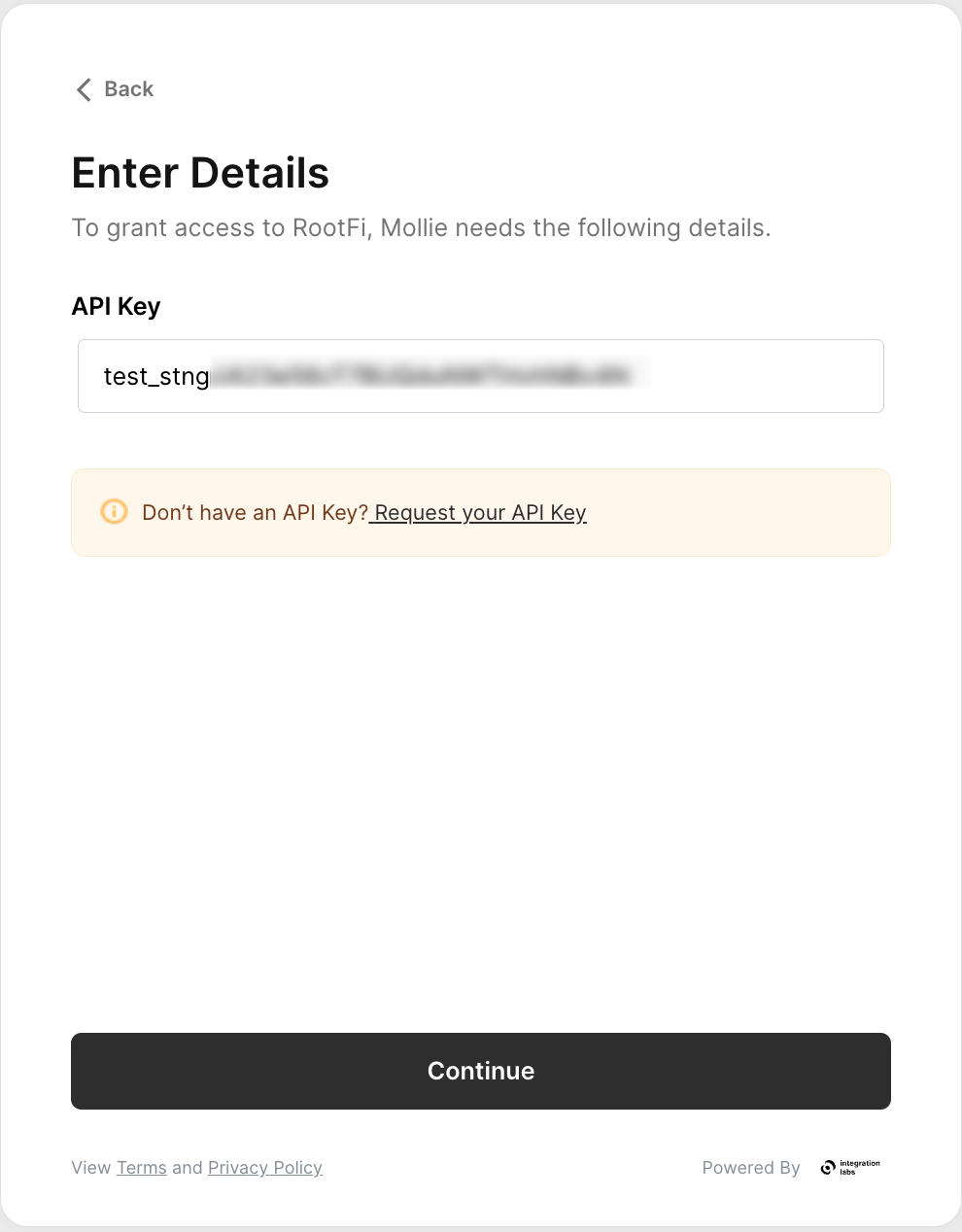
When your customer is connecting their Mollie account to RootFi, they will need to enter their API Key on RootFi’s invite link setup.
1. **API Key**: The key copied in the above steps.
### Part 2: Setting up the integration using Connect by RootFi
When your customer is connecting their Mollie account to RootFi, they will need to enter their API Key on RootFi’s invite link setup.
1. **API Key**: The key copied in the above steps.