

Part 1: Register your Hubspot application
- Go to https://app.hubspot.com/developer/
- Navigate to Apps in the sidebar and click ‘Create app’ button.

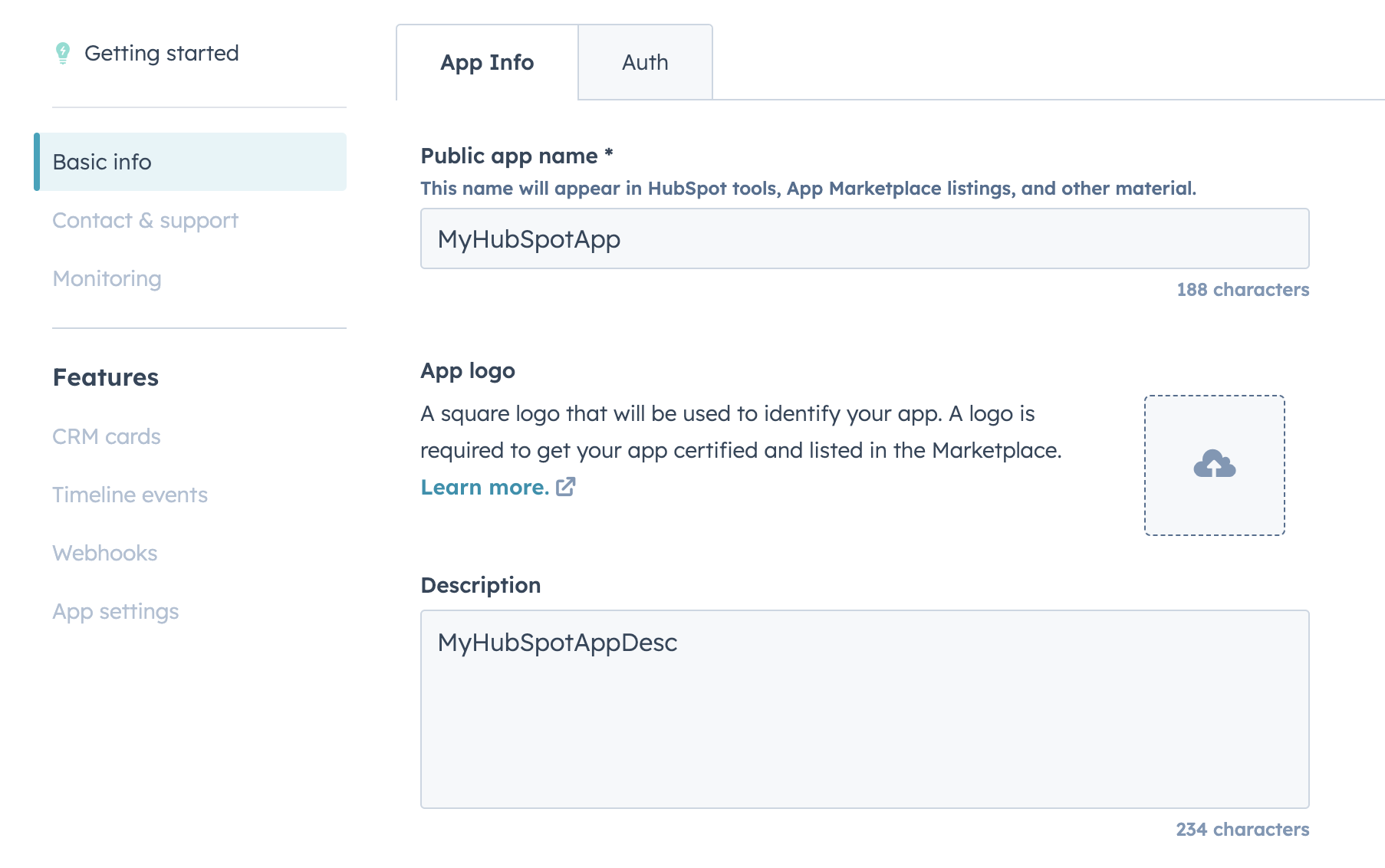
- Fill in the basic information in App Info tab.
- Go to the ‘Auth’ tab and fill in the following fields:
- Redirect URL: This is the URL where the user will be redirected after they have authorized the app. Use ROOTFI CALLBACK URL as the redirect URL.
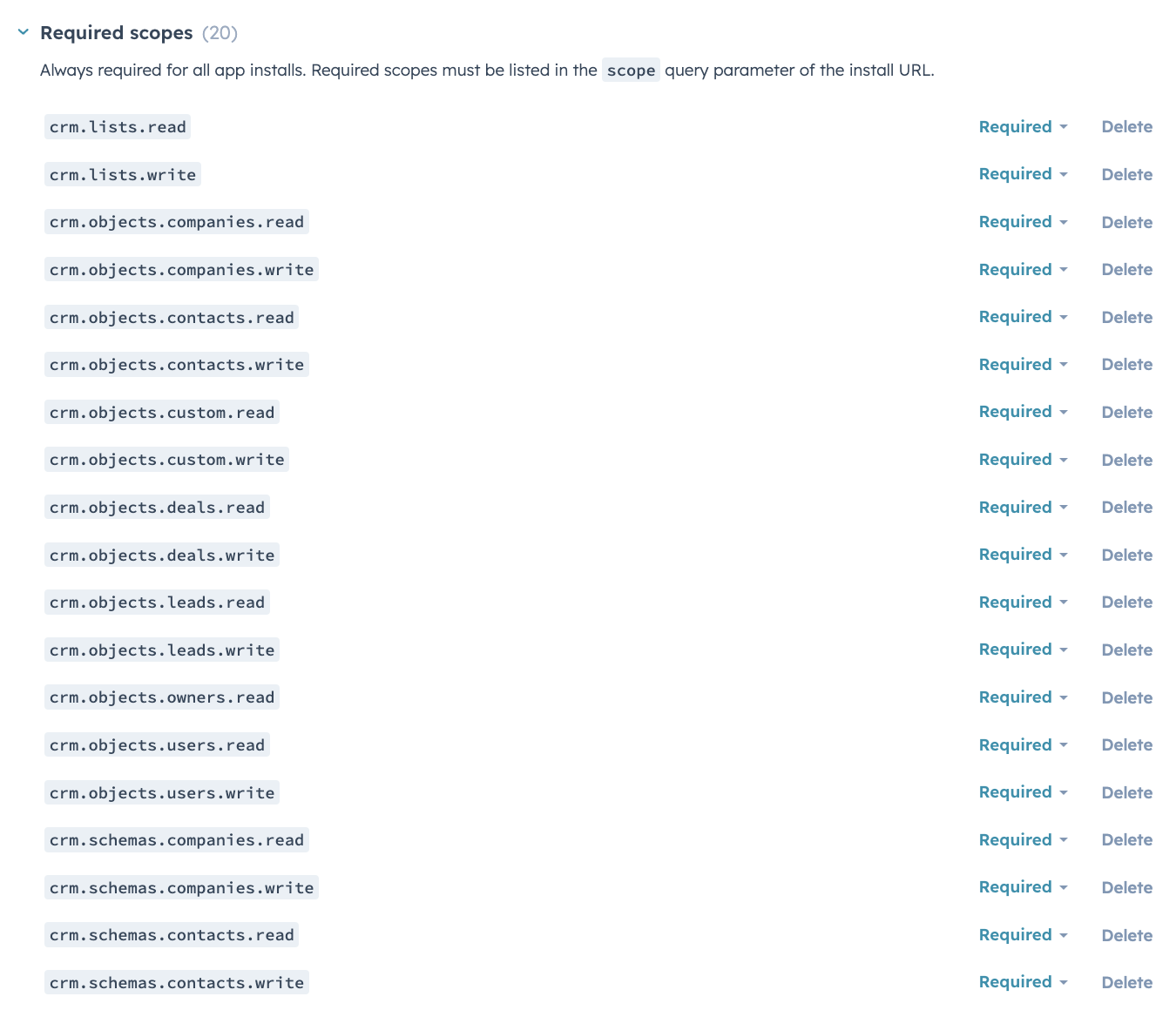
- Scopes: Select the scopes you need for your integration. For RootFi, you will need the following scopes:
- Click on the ‘Create App’ button to save the changes.
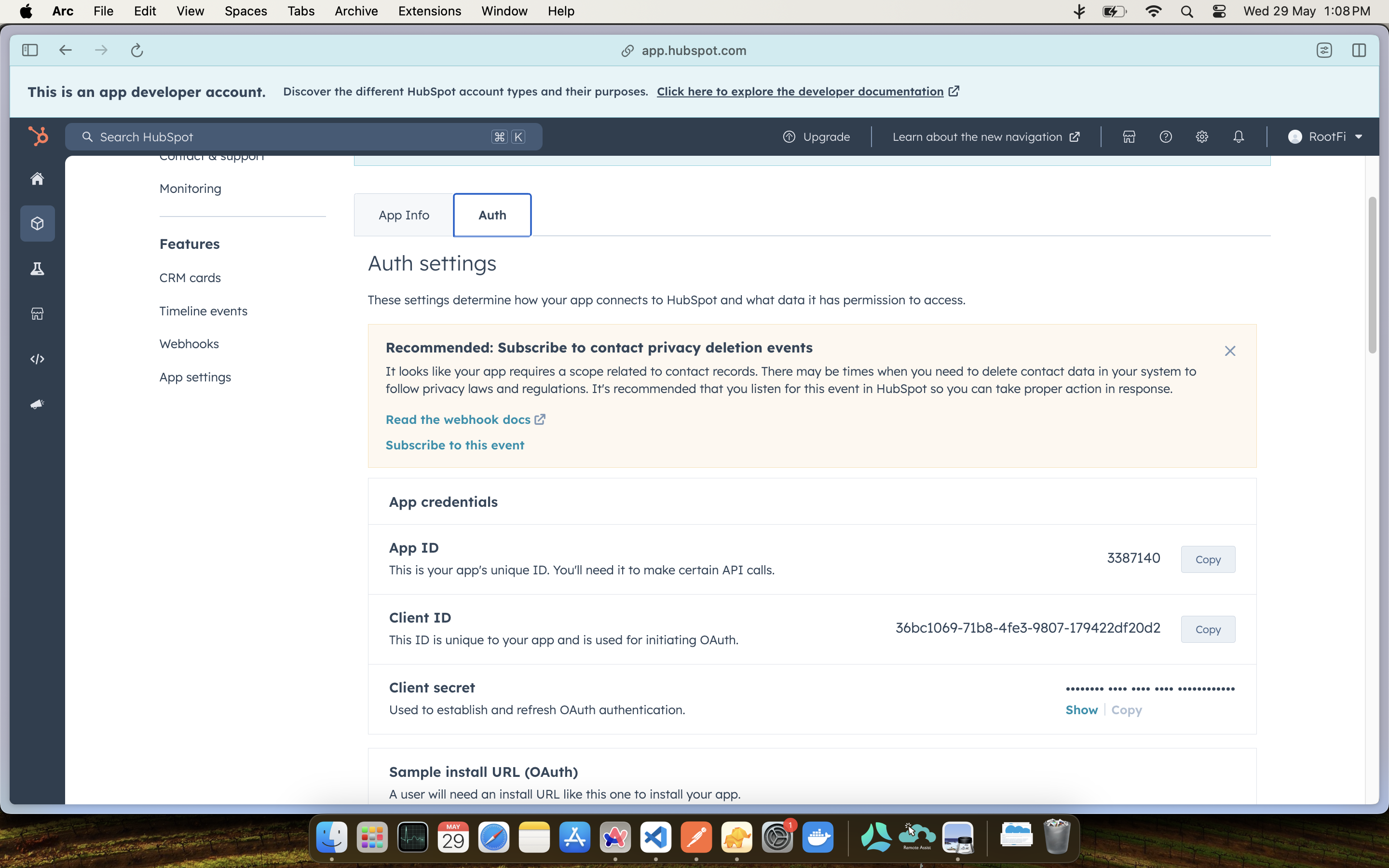
- Visit the ‘Auth’ tab again and copy the ‘Client ID’ and ‘Client Secret’ values.
Part 2: Enter Your Client ID and Client Secret on the RootFi Dashboard
- Login to the RootFi dashboard
- Select the ‘Integrations’ tab on the sidebar - here you will see a list of platforms you can integrate with
- Click the ‘Set Up’ button which is present on the Hubspot card.
- When the form opens up simply enter the ‘Client ID’ and ‘Client Secret’ which you generated on the Hubspot Developer App and click ‘Save’
Supported data models (V4)
HubSpot is available as a CRM source on the V4 Unified API. The following data models are synced:
Contacts expand into
addresses, phone_numbers, and external_links child records via the expand query parameter.