You will need to have verified your company domain in order for you to link your Microsoft Dynamics 365 Business Central integration
Create an App
Follow the link https://portal.azure.com/#view/Microsoft_AAD_RegisteredApps/ApplicationsListBladeClick on the +New Registration, you will see a form like this.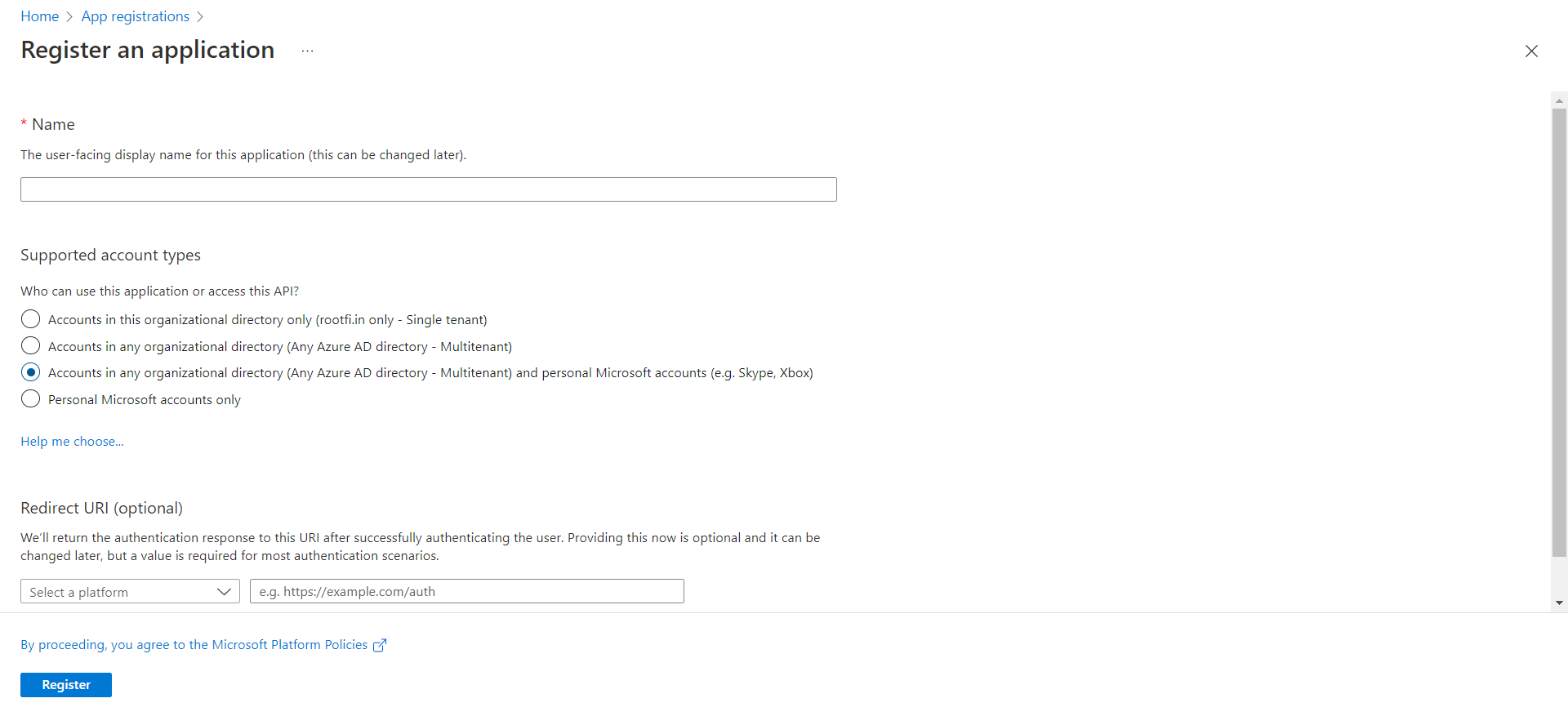
- Enter the user-facing display name for this application (this can be changed later).
- Select Supported account types: Select Accounts in any organisational directory (Any Azure AD directory - Multi-tenant) and personal Microsoft accounts (e.g. Skype, Xbox). This allows RootFi to access data in Dynamics 365 Business Central.
- In the Redirect URI, select the dropdown value as Web and in the value, paste the url, ROOTFI CALLBACK URL
- Now Click the Register Button, now you have created an app.
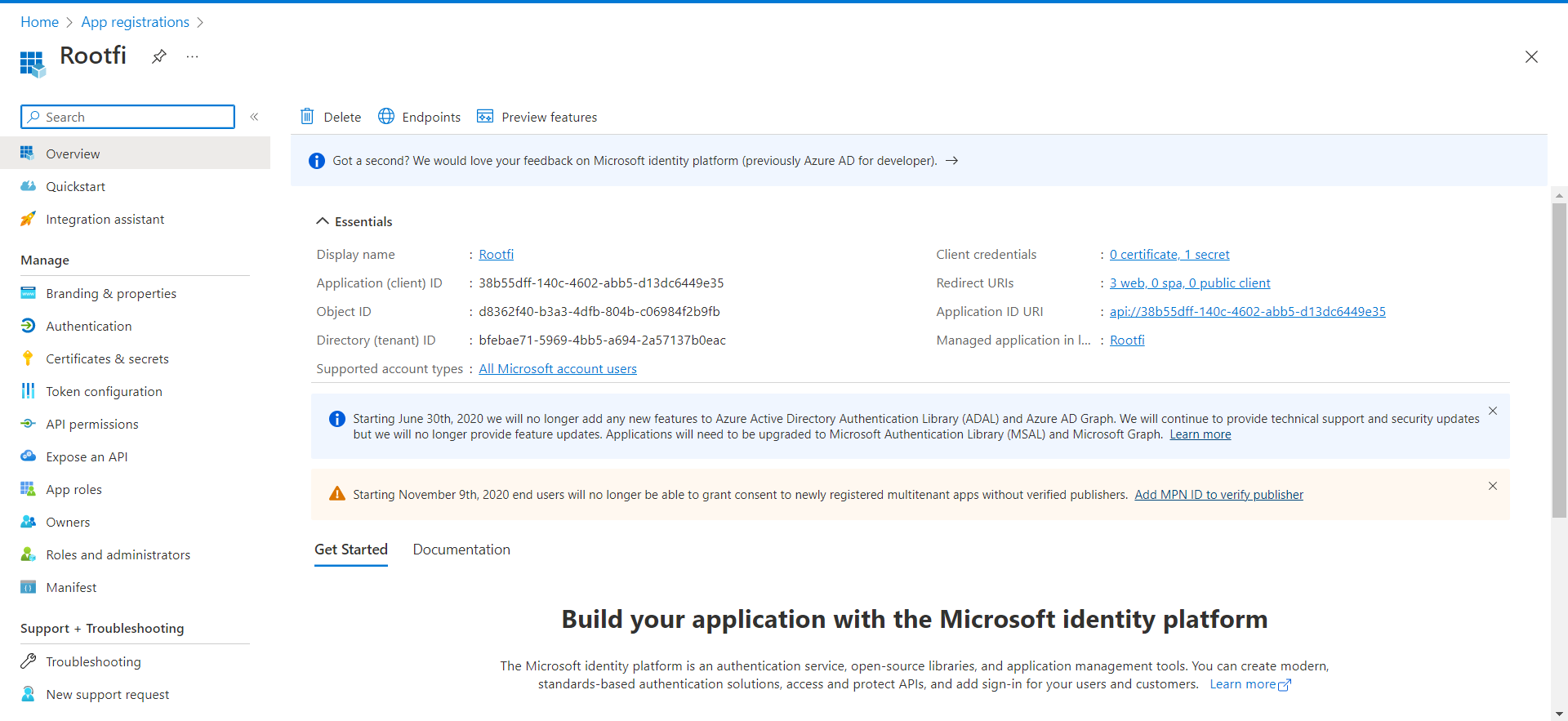
- Below, You can see the newly created app.
Copy Client ID and Client Secret
-
Click on the newly created app, Go to the Overview section, you can see the Application Client ID.
Generate and retrieve your client secret
In the Azure Portal:
- Select Certificates & secrets in the left menu.
- Under Client secrets, click New client secret.
- In the Add a client secret dialogue, update the following information:
- Description: Enter a short description of your client secret to make it easier to find.
Expires: Select the most appropriate option that complies with your company’s security policy.
Click Add.
Update access permissions
Now update the access permissions for your application. These control the data that your app can access in Business Central.
- Select API permissions in the left menu.
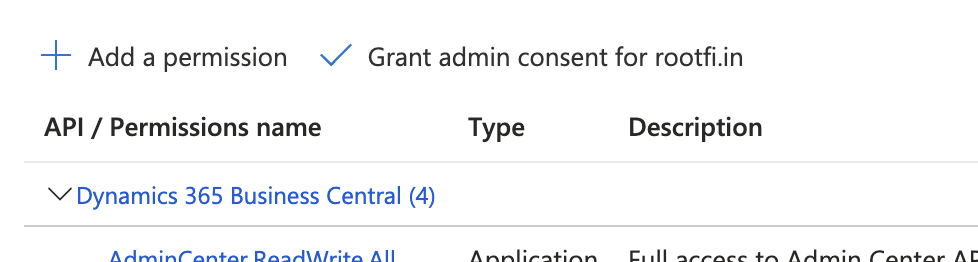
- Under Configured permissions, click Add permission.
- In the Request API permissions pane, scroll down and select Dynamics 365 Business Central.
- Select Application permissions and also select the listed permissions:
AdminCenter.ReadWrite.All, API.ReadWrite.All, app_access and Automation.ReadWrite.All.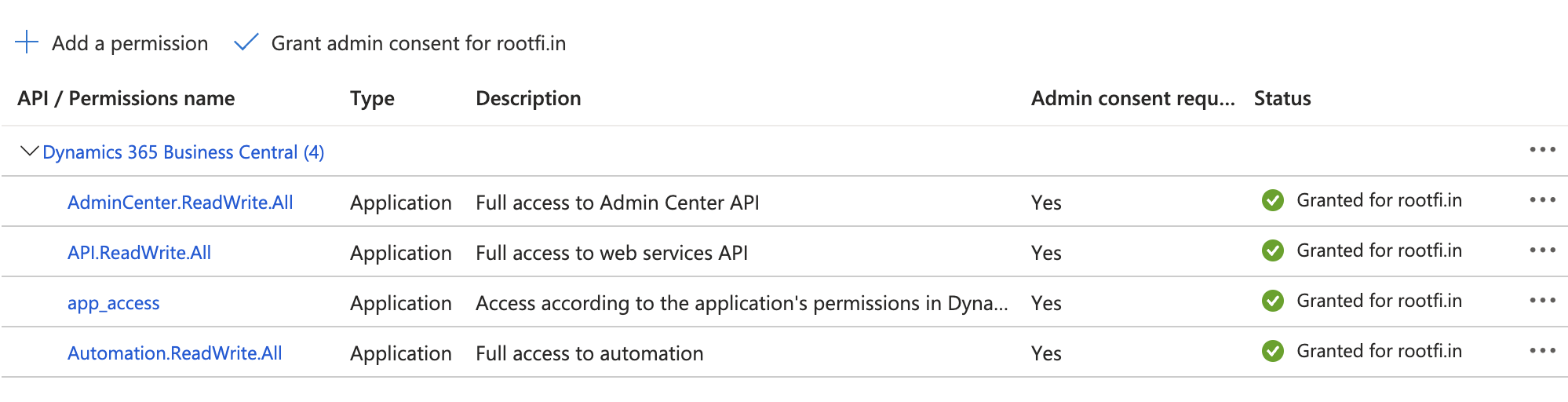
- Click ‘Add Permissions’.
- Above the listed permissions, select Grant admin consent for Default Directory and then select Yes to confirm your change. This option might not be available for all subscription types
Enable the App Inside Business Central
To complete your setup, enable the Azure Entra App from within Business Central:Navigate to the following link and sign into
https://businesscentral.dynamics.com
- Click the search icon (🔍) in the top-right corner, search for “Entra”, and click Microsoft Entra Applications:

- Click New.

- In the form that appears, paste your Client ID into the Client ID / App ID field.
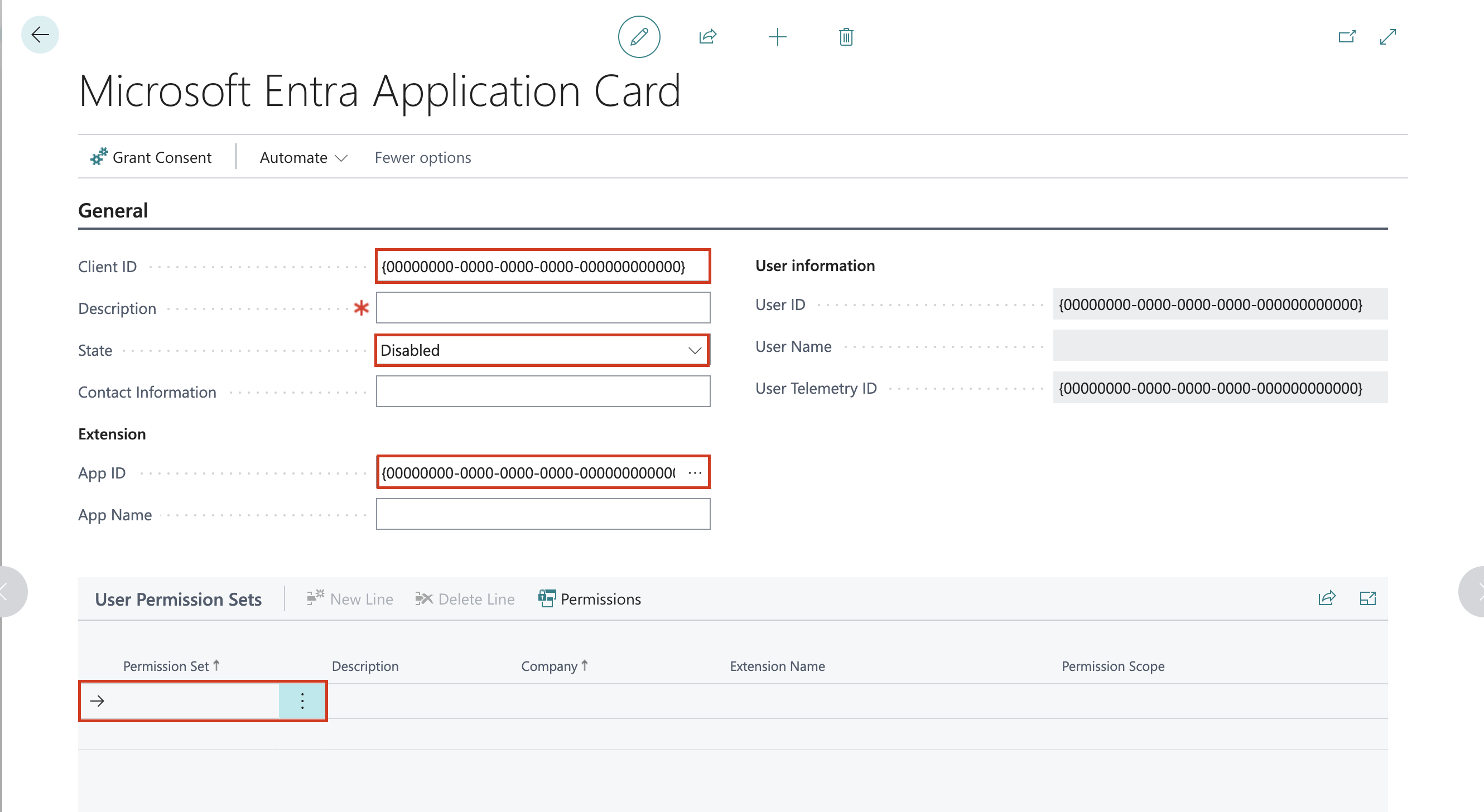
- From the State dropdown, select Enabled.
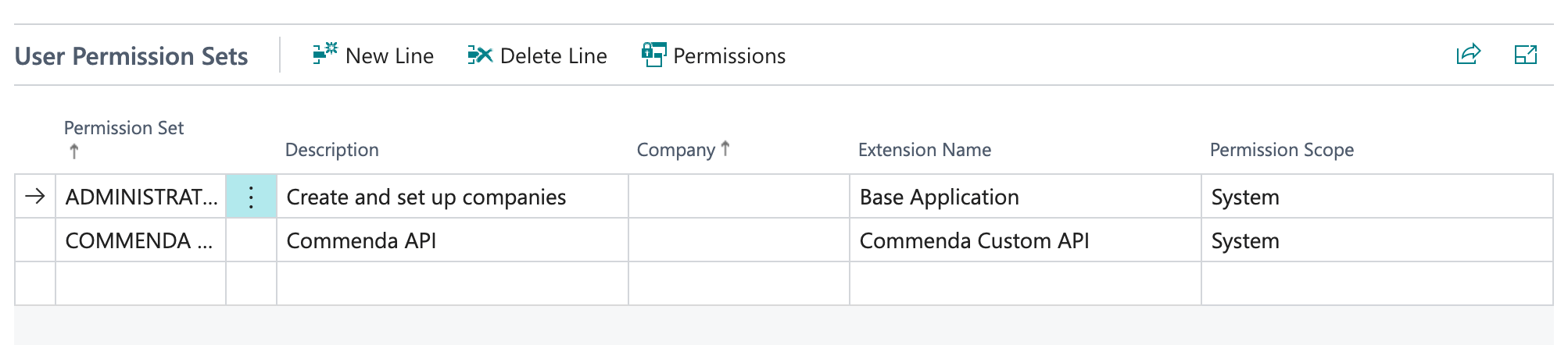
- Scroll down to the permissions section and assign Administrator access.

- Click Save to apply the changes.
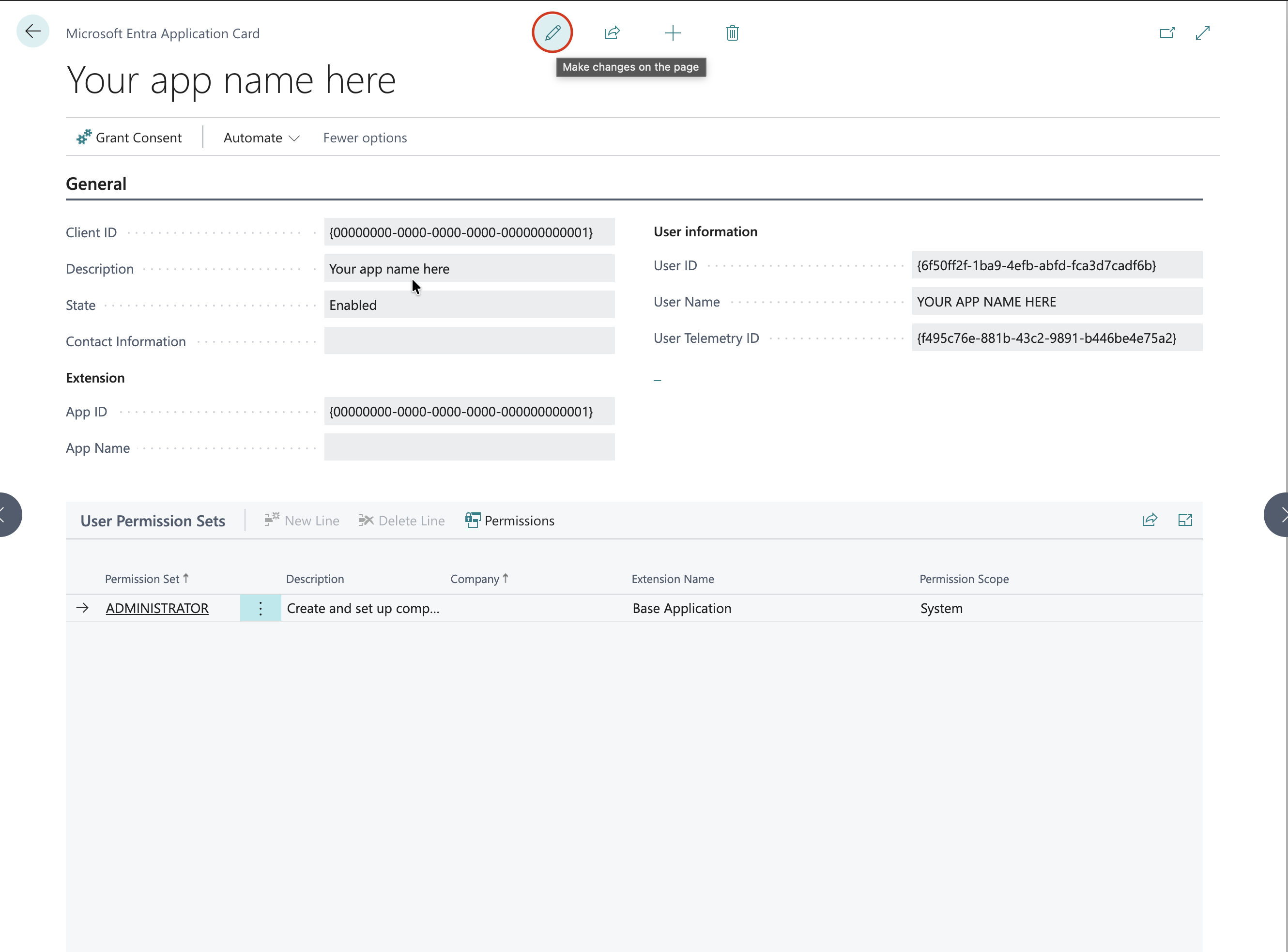
- Your Azure App is now authorized inside Business Central and ready for use with RootFi.
Get Tenant ID and Env Name from Admin Center
You will need to enter your Client Credentials, Tenant ID and Env name in the RootFi connect screen.
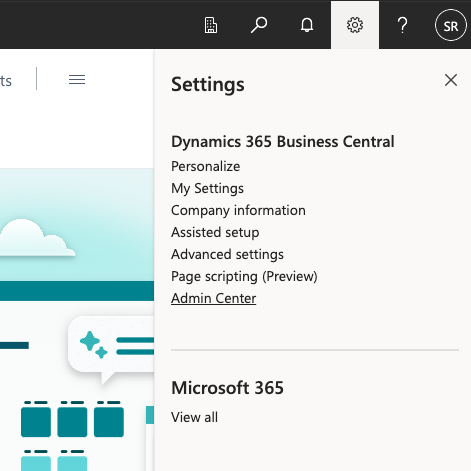
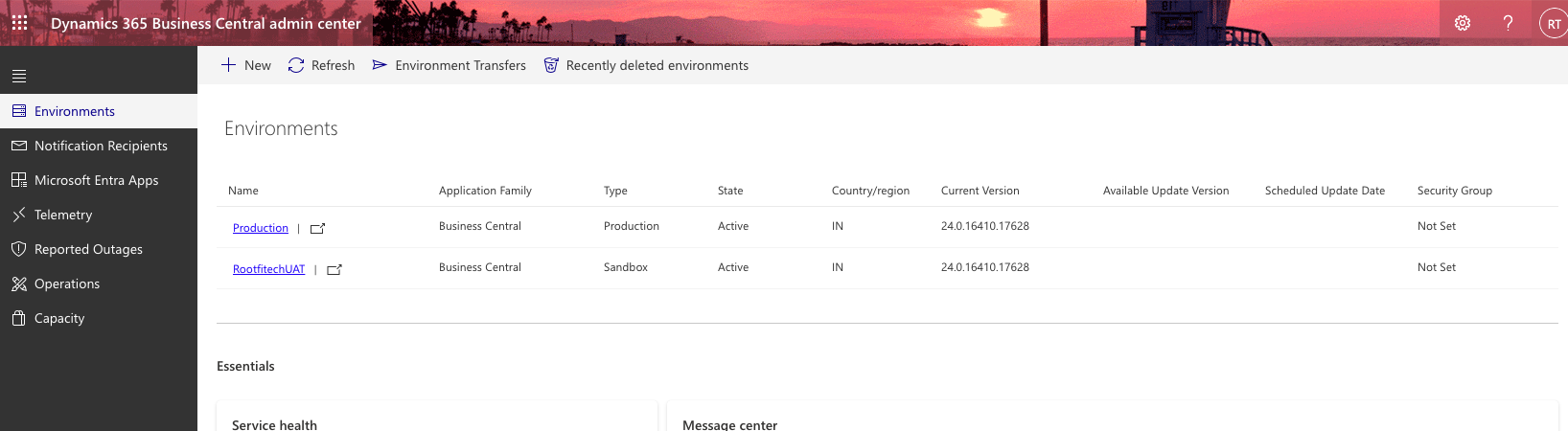
- To get the Tenant ID and Env name, navigate to the BC dashboard, click on settings and then click on ‘Admin Center’.
- Select the environment you want to connect.
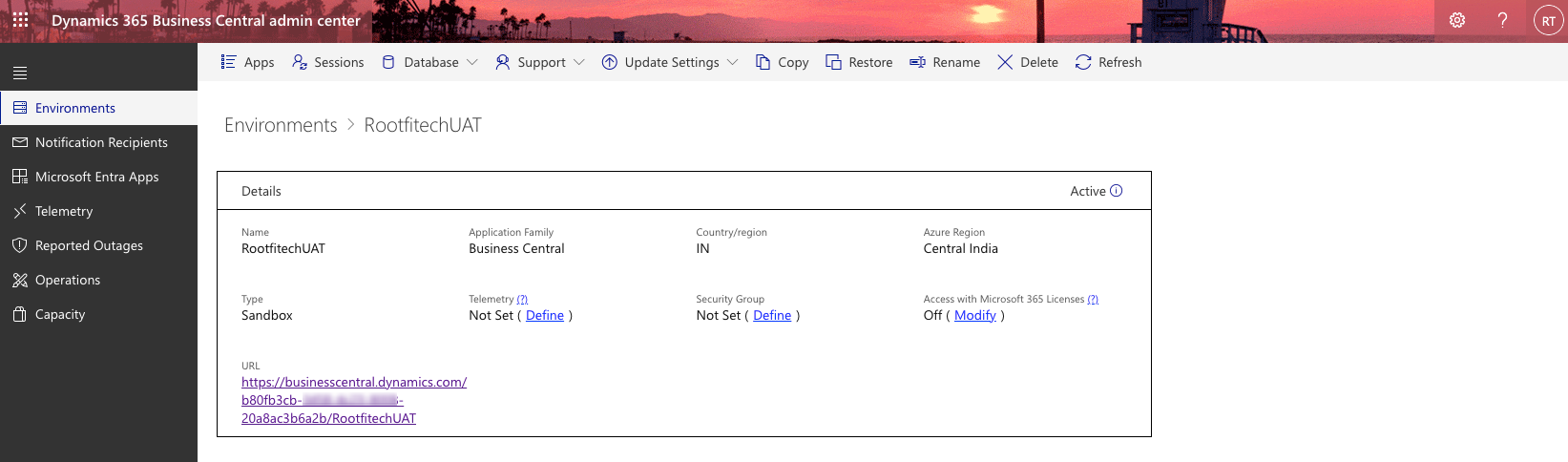
- Copy the name of the environment and the tenant id from the URL. Use the following pattern to get the tenant ID of your Business Central: https://businesscentral.dynamics.com/[TENANT_ID]/[ENVIRONMENT_NAME]
(Optional) Install the Commenda Custom API extension
The Commenda Custom API extension is only required for some additional features that Business Central’s standard APIs do not support. The rest of the integration works without it. If you are unsure whether you need this step, reach out to the Commenda integrations team.
The extension requires Business Central application version 27.3 or later, and you must be a Business Central administrator to upload it.
- Download Commenda_Business_Central_Extension_1.2.0.0.app.
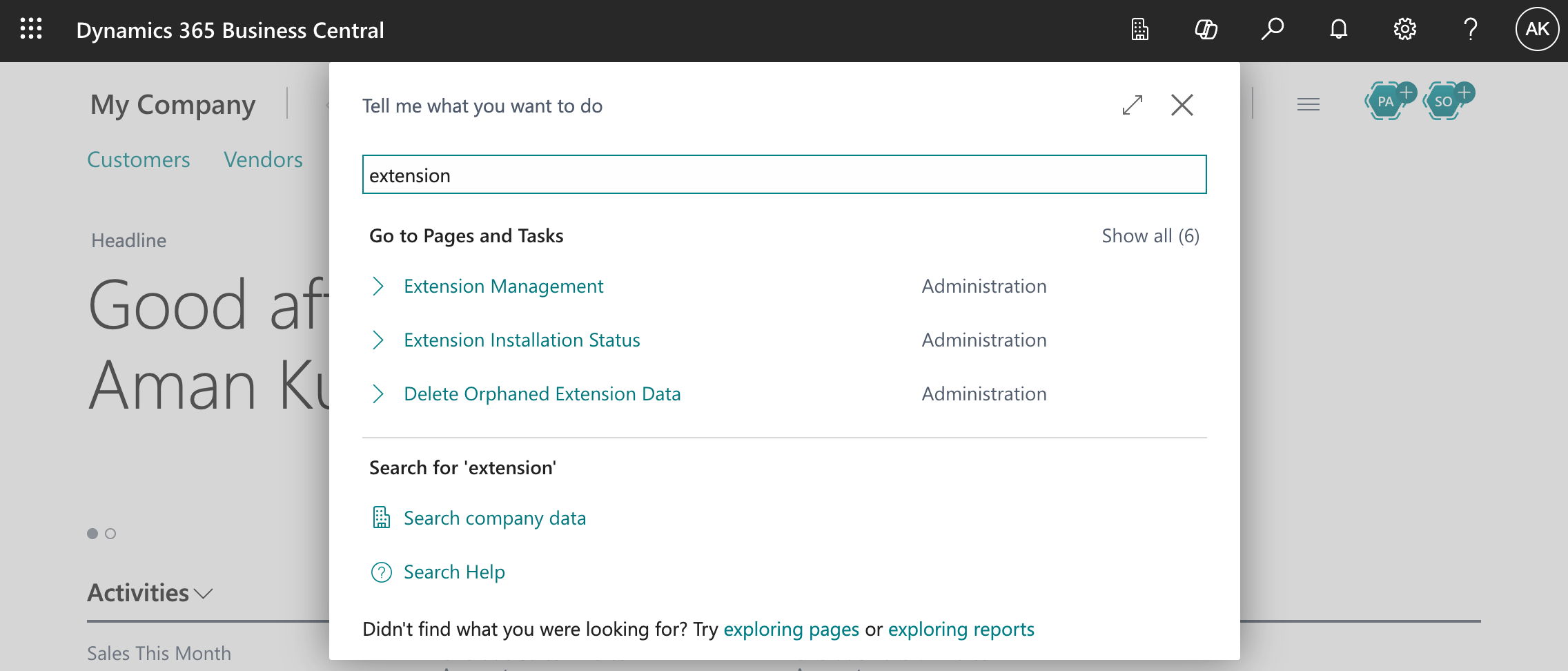
- In Business Central, click the search icon (🔍), search for “extension”, and open Extension Management.
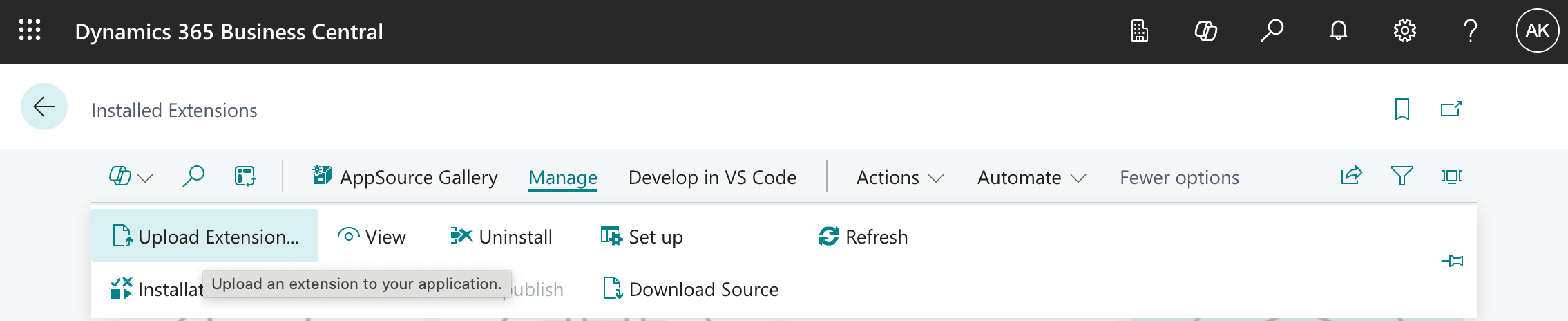
- Open Manage and click Upload Extension….
- In the Upload And Deploy Extension dialog, select the downloaded
.appfile, keep Deploy to as Current version and Schema Sync Mode as Add, accept the Per-Tenant Extension disclaimer, and click Deploy.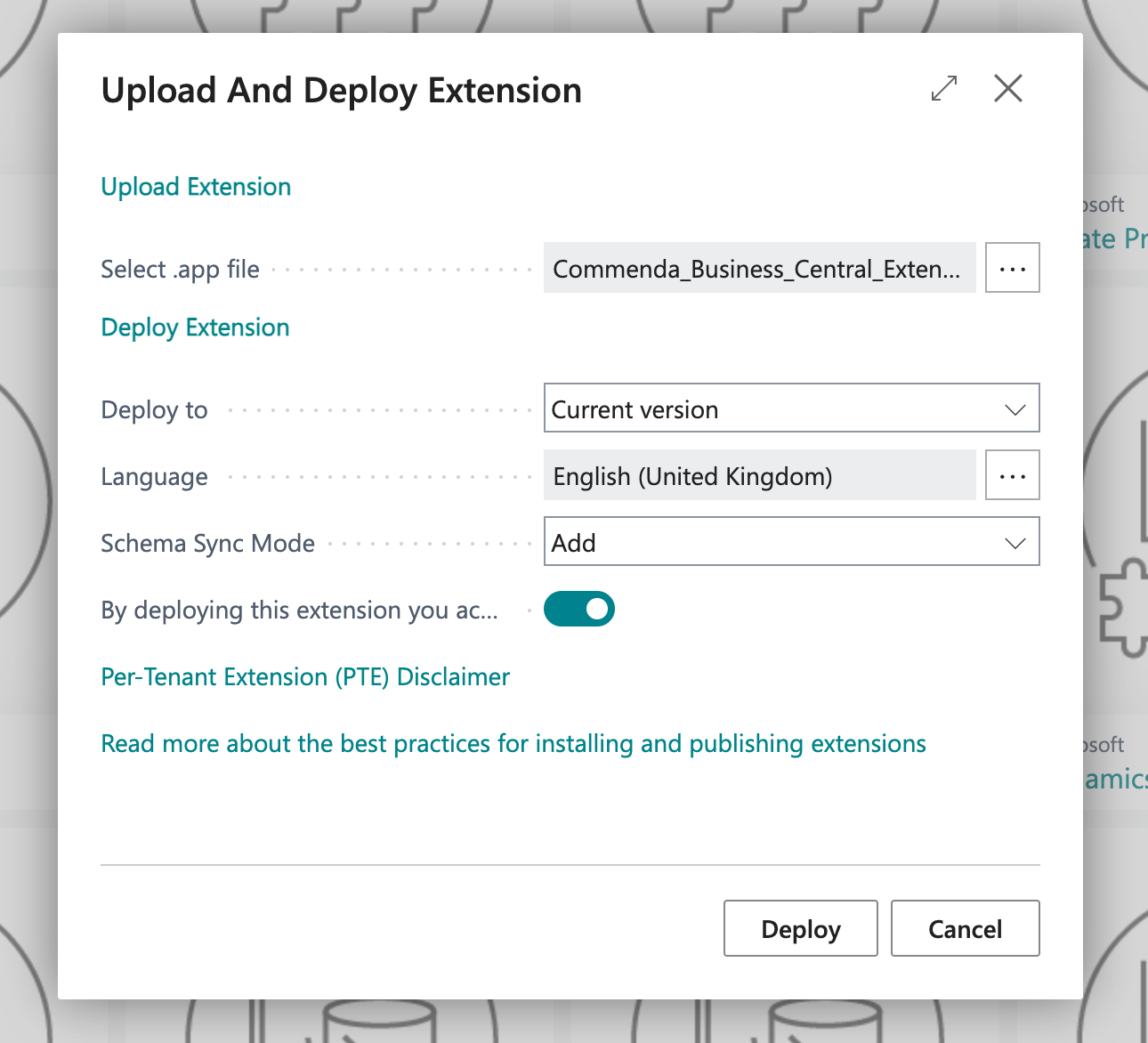
- Deployment runs in the background. Track it under Manage → Installation Status, and refresh Extension Management until Commenda Custom API appears as installed.
- Assign the COMMENDA API permission set to the account that RootFi authenticates as — the Microsoft Entra application you enabled in step 5. Open its permission sets and add a line for COMMENDA API.