

Part 1: Get your Puzzle OAuth credentials
- Contact Puzzle support and request OAuth credentials (Client ID and Client Secret) for your application.
- Puzzle registers the redirect URI on their side and does not allow it to be changed, so ask them to register the ROOTFI CALLBACK URL.
Part 2: Enter your Client ID and Client Secret on the RootFi Dashboard
- Login to the RootFi dashboard.
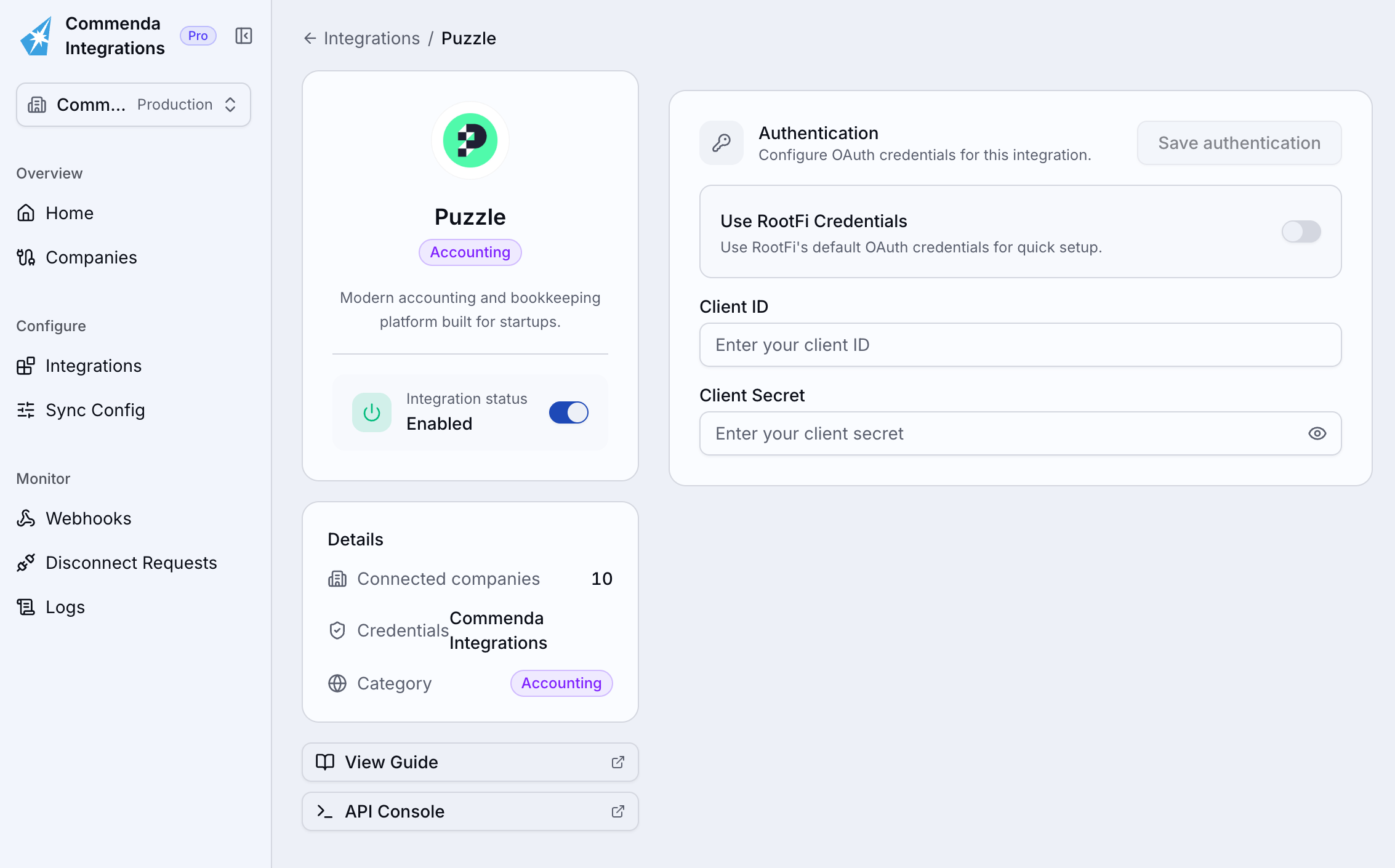
- Select the ‘Integrations’ tab on the sidebar - here you will see a list of platforms you can integrate with.
- Open the Puzzle integration, enter the ‘Client ID’ and ‘Client Secret’ provided by Puzzle support and click ‘Save authentication’. To use RootFi’s credentials instead, turn on the ‘Use RootFi Credentials’ toggle.
- Enable the integration using the ‘Integration status’ toggle.
Part 3: Connecting a company
When your customer connects their Puzzle account through RootFi’s Connect Link, they log in to Puzzle and approve access. If their Puzzle login has access to more than one company, they are then asked to pick the one to sync; the selection is stored on the connection as theorganization_id connection variable.