

- Consumer Key
- Consumer Secret
- Token ID
- Token Secret
Pre-requisites
Before setting up the integration, make sure you meet the following requirements:- You possess Administrator permissions in your company’s NetSuite instance or have access permissions shared with you by another user.
Enable Features
Do this before installing the bundle. Navigate to Setup > Company > Enable Features and turn on:1
Token-Based Authentication and OAuth 2.0
On the SuiteCloud subtab, under Manage Authentication.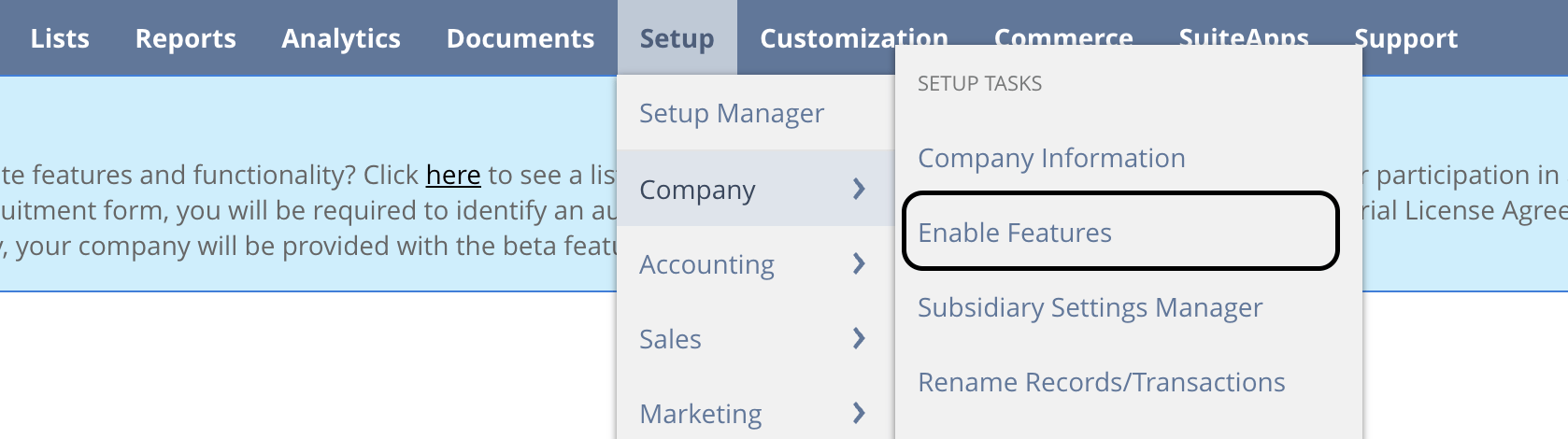
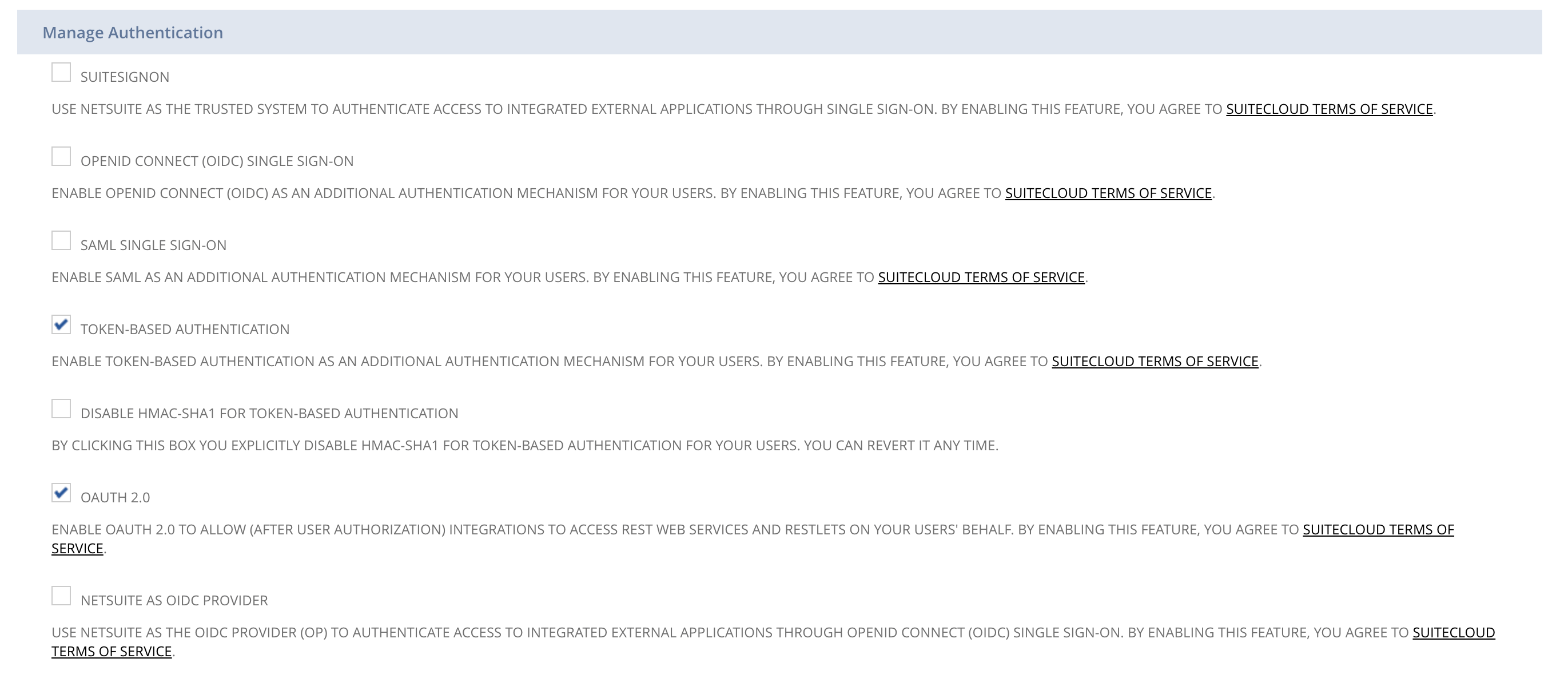
2
REST Web Services
On the SuiteCloud subtab, under SuiteTalk (Web Services).
3
Client SuiteScript and Server SuiteScript
On the SuiteCloud subtab, under SuiteScript.
Install the Bundle
1
First Step
In your NetSuite account, navigate to Customization > SuiteBundler > Search & Install Bundles > List or search for Search & Install Bundles in the Search bar.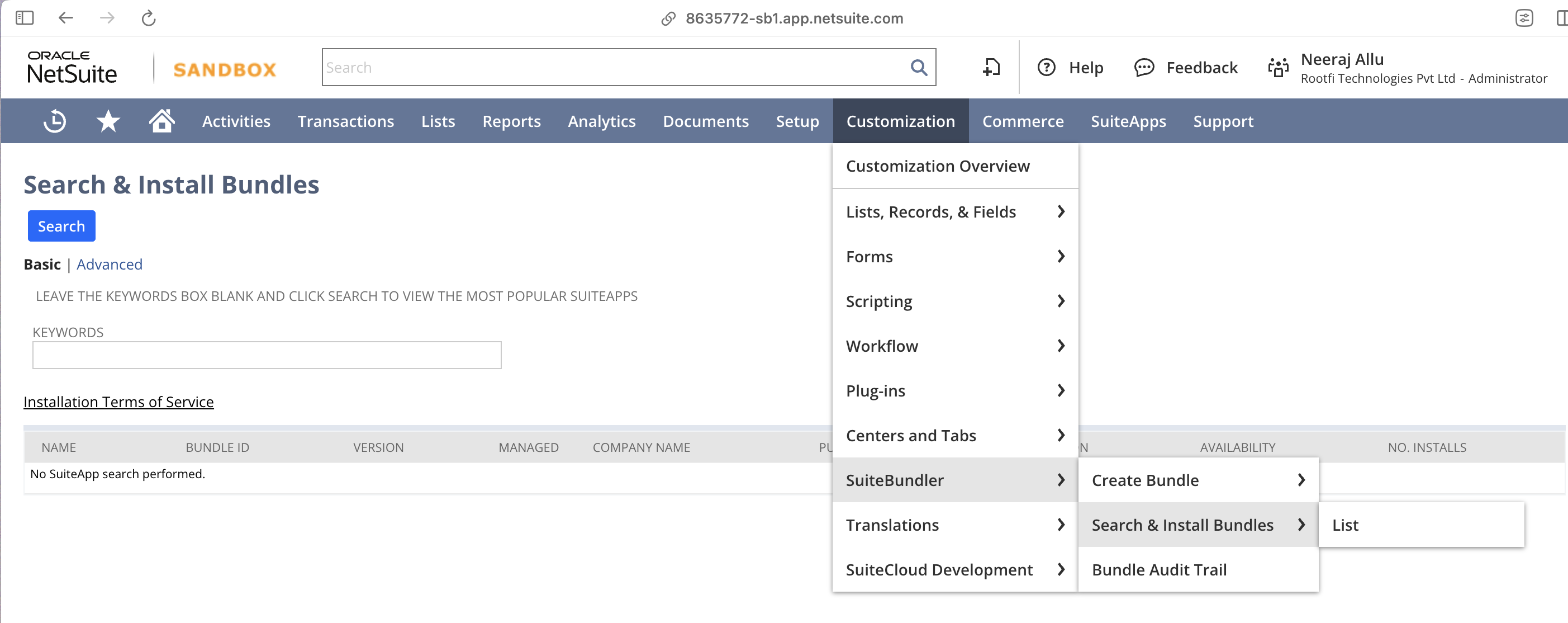
2
Second Step
Search for the RootFi Bundle or bundle ID 489902 using the Keyword box. 
3
Third Step
Select the bundle and click Install. 
4
Fourth Step
The bundle will begin installing and you maybe directed to the Installed Bundles page. It may take up to 5 minutes to install. 
Create a new integration to generate the Consumer Key and Consumer Secret
1
First Step
Navigate to Setup > Integration > Manage Integrations > New to create a new integration. 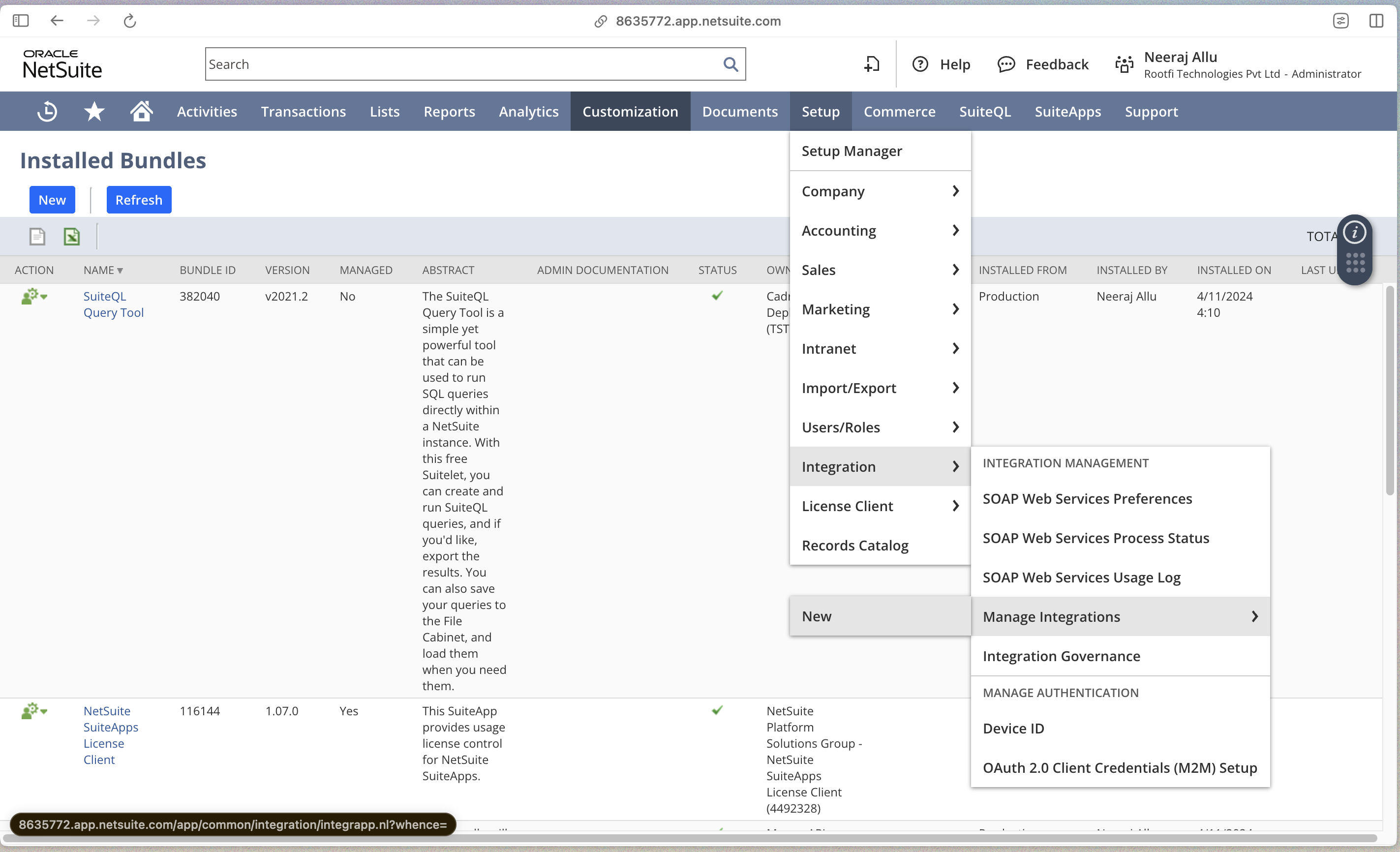
2
Second Step
Create an integration with the below details:
- Any value can be populated in the NAME field
- The CONCURRENCY LIMIT should be left unpopulated
- Ensure the REST WEB SERVICES box is checked under SCOPE
- The TOKEN-BASED AUTHENTICATION and TBA AUTHORIZATION FLOW boxes should be checked
-
Fill in the CALLBACK URL and REDIRECT URI with a value of [ROOTFI CALLBACK URL](ROOTFI CALLBACK URL)

3
Third Step
Save the integration to generate the Consumer Key and Consumer Secret. This will only be shown once, so store them in a secure place.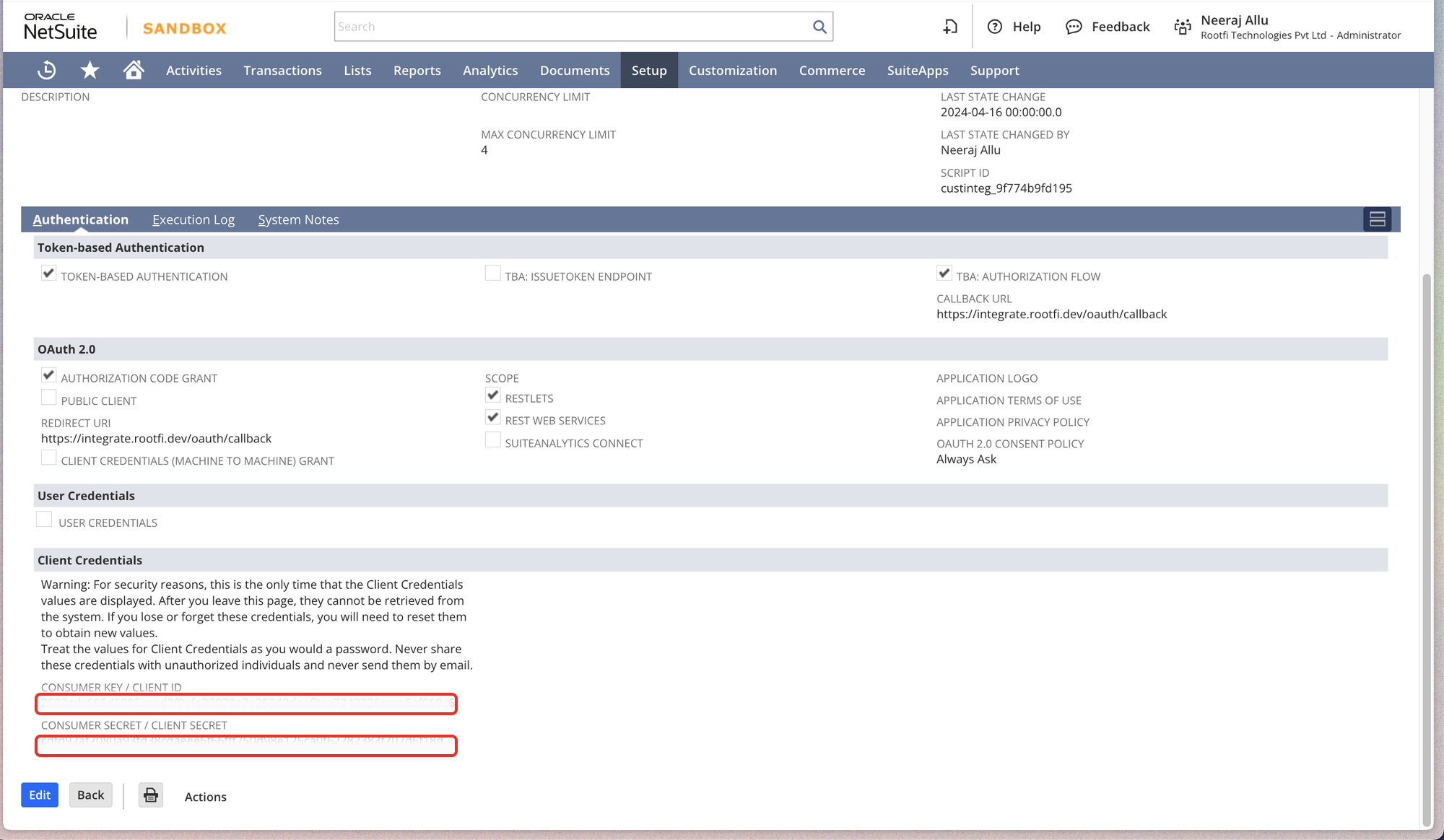
4
Fourth Step
The bundle will begin installing and you maybe directed to the Installed Bundles page. It may take up to 5 minutes to install.
Assign a user to the role
1
First Step
Navigate to Setup > Users/Roles > Manage Users or search Manage Users in the Search bar.
2
Second Step
In the Manage Users page, either select a user to assign the Role to.
3
Third Step
In the user’s employee record, click Edit and go to the Access tab. In your Access tab, go to Roles and select RootFi Role Permission.
Create an access token to get your Token ID and Secret
1
First Step
In your Setup tab, go to User Roles > Access Tokens > New or search New Access Token in the search bar to begin creating a New Access Token.
2
Second Step
Select the Application Name (name of the integration you created in Step 2), User and Role (RootFi Role Permission) and click Save to generate a new access token.
3
Third Step
Copy the Token ID and Token Secret provided. This will only be shown once, so store them in a secure place.
Finding your NetSuite Account ID
1
First Step
Log into your NetSuite portal
2
Second Step
Copy the subdomain of the URL at the top of your browser and enter it within the Connect Link. In the below screenshot it is 
8635772-sb1. Enter credentials in the Connect flow

- Consumer Key: Confirmation screen after creating the integration (Step 2)
- Consumer Secret: Confirmation screen after creating the integration (Step 2)
- Token ID: Confirmation screen after creating your Access Token (Step 3)
- Token Secret: Confirmation screen after creating your Access Token (Step 3)